Customizing Your iPhone 16 Images With Photographic Styles
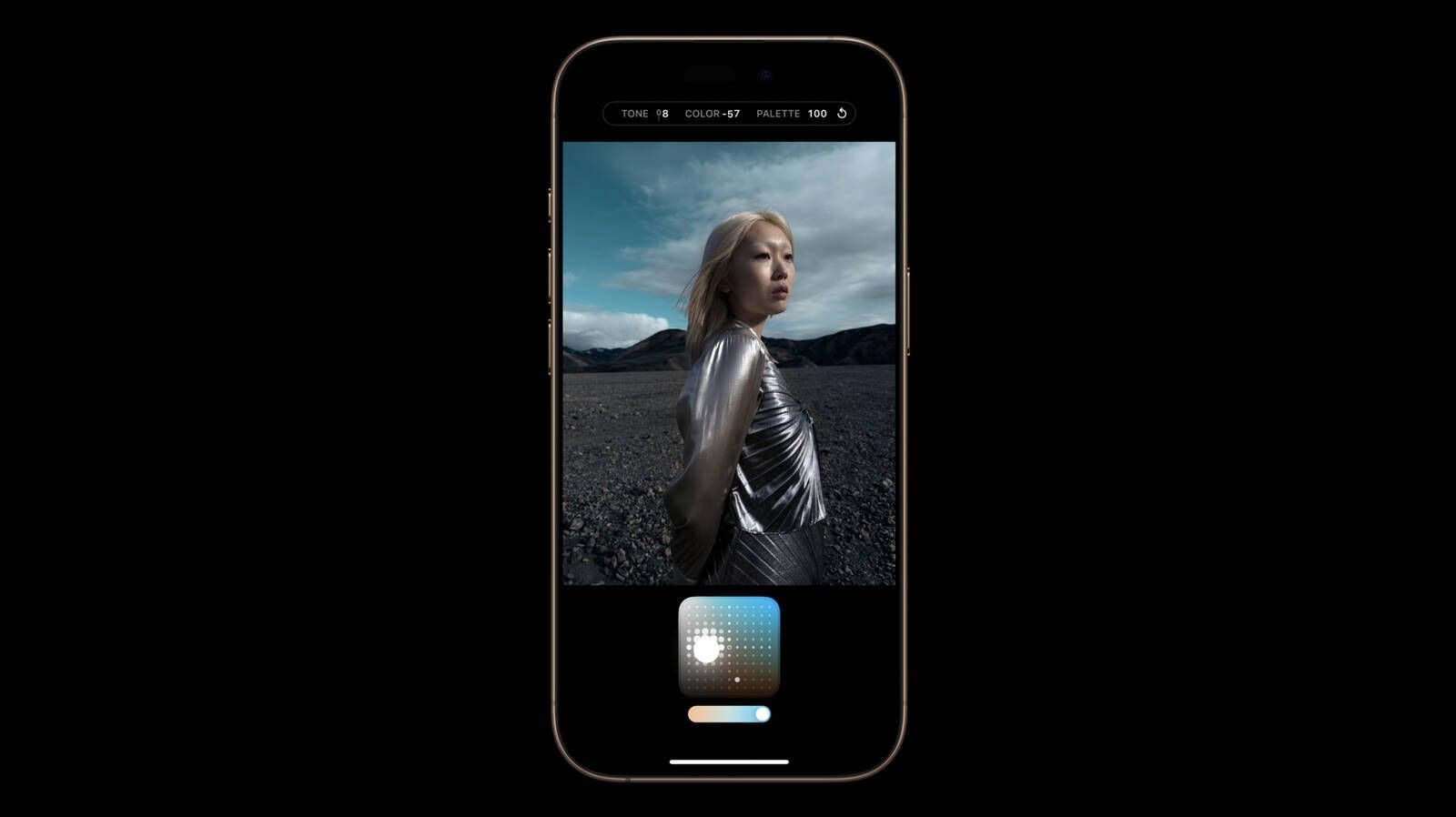 One of the major new software-based camera features in the iPhone 16 models is support for a wider range of Photographic Styles, complete with more granular controls to make for a setup where you can create a customized look for all of your images.
Photographic Styles isn't a feature that's quite as easy to use as something as simple as a filter, so we thought we'd delve into how it works and how to get the most from it.
Available Photographic Styles
Photographic Styles aren't new, but with prior iPhone models, there were only four options: Rich Contrast, Vibrant, Warm, and Cool. On the iPhone 16, there are several more pre-set styles to choose from.
Cool Rose
Neutral
Rose Gold
Gold
Amber
Standard (No edits)
Vibrant
Natural
Luminous
Dramatic
Quiet
Cozy
Ethereal
Muted Black and White
Stark Black and White
All of the styles have varying Tone, Color, and Palette settings, that correspond to brightness, saturation, and effect intensity.
How Photographic Styles Work
According to Apple, on the iPhone 16 models, Photographic Styles adjust specific colors in select parts of your photos to adjust the overall look.
The first five Photographic Styles are tuned for skin undertones, including Cool Rose, Neutral, Amber, Rose Gold, and Gold. Cool Rose accentuates cool pinkish undertones, while neutral neutralizes warm undertones. Amber, Rose Gold, and Gold accentuate those specific tones. These can be fairly subtle, depending on the settings you choose.
Other Styles are closer to what you get with a filter, adding more dramatic effects that impact the mood of the image.
Setting Up and Customizing Your Style
When you've taken at least four photos with the iPhone 16 camera, you can go to Settings > Camera > Photographic Styles to set the base tone that you want to use for all of your images.
You can pick from the skin tone-focused options, which include Cool Rose, Neutral, Amber, Rose Gold, and Gold. You'll see the different effects across four images, and you can adjust the intensity to begin with.
After you've selected a favorite undertone, you can further refine the look by dragging a finger over the touchpad, which changes the brightness and saturation. The slider changes the overall intensity.
Once you've set your Photographic Style, it's automatically applied to all of your images and it is the default value for your photos.
Camera > Photographic Styles > Reset to Standard.
Real-Time Previews
In the Camera app when you go take a photo, if you tap on the touchpad icon, you can select a different undertone or mood style. Swiping changes the Photographic Style, and the controls below can be used to customize the look.
The option to use customized Photographic Styles in real-time lets you preview what an image will look like with different effects before you even take it.
You can access Photographic Styles from the Camera Control button too. Press Camera Control once to open the Camera app, then light press to bring up the Camera Control menu. Swipe until you get to Styles or Tone, then light press again to select it. From there, you can make adjustments by swiping. To get back to the menu to select another option, use a light double press.
Editing After a Shot
You can add or adjust a Photographic Style after an image has been captured, so it's not something that you need to do in the moment. This is the first time that Apple has allowed Photographic Styles to be edited after the fact - earlier versions of this feature only allowed the Style to be applied when taking an image.
Photos app, tap on the three bars to enter the editing interface, and then tap on Styles. You can select any of the styles and then adjust it using the touchpad.
The touchpad's X axis adjusts color, while the Y axis adjusts tone. The slider adjusts overall intensity or Palette. A Tone setting of 0, a Color setting of 0, and a Palette setting of 0 result in a "Standard" photo that has no Photographic Style applied, so that's a good starting point to better understand exactly what each style is changing.
Adjusting the Color to the left desaturates, while dragging it to the right deepens color. Dragging Tone up makes the image brighter, while dragging it down makes it darker.
You can change the Photographic Style setting at any point, and it is a non-destructive edit so it's not permanent. If you want to get back to a normal, unedited photo, choose the Standard setting.
Photographic Styles are entirely distinct from the Photos app Adjust section where you can tweak exposure, brilliance, highlights and shadows, contrast, brightness, saturation, vibrance, warmth, tint, and more.
HEIF Only
If you have your iPhone set to take JPG images instead of HEIF, you won't be able to use Photographic Styles. You need to have HEIF turned on. In the Camera section of the Settings app, HEIF can be enabled by going to Formats and choosing "High Efficiency" instead of "Most Compatible."
Preserve Settings
By default, the Photographic Style that you set up using the Settings app will be used automatically. If you select a different Photographic Style when you're taking a photo, it will use that only until you close the Camera app.
Camera > Preserve Settings and toggle on Photographic Style. With this turned on, your iPhone will preserve your last used Photographic Style rather than reset to your default.
Photographic Styles and Older iPhones
Older iPhones do not support the new touchpad and adjustment settings for Photographic Styles, but if you take an image on an iPhone 16 and then edit it on an older phone, you can see the touchpad to make further adjustments.
Related Roundups: iPhone 16, iPhone 16 Pro
Buyer's Guide: iPhone 16 (Buy Now), iPhone 16 Pro (Buy Now)
This article, "Customizing Your iPhone 16 Images With Photographic Styles" first appeared on MacRumors.com
Discuss this article in our forums
One of the major new software-based camera features in the iPhone 16 models is support for a wider range of Photographic Styles, complete with more granular controls to make for a setup where you can create a customized look for all of your images.
Photographic Styles isn't a feature that's quite as easy to use as something as simple as a filter, so we thought we'd delve into how it works and how to get the most from it.
Available Photographic Styles
Photographic Styles aren't new, but with prior iPhone models, there were only four options: Rich Contrast, Vibrant, Warm, and Cool. On the iPhone 16, there are several more pre-set styles to choose from.
Cool Rose
Neutral
Rose Gold
Gold
Amber
Standard (No edits)
Vibrant
Natural
Luminous
Dramatic
Quiet
Cozy
Ethereal
Muted Black and White
Stark Black and White
All of the styles have varying Tone, Color, and Palette settings, that correspond to brightness, saturation, and effect intensity.
How Photographic Styles Work
According to Apple, on the iPhone 16 models, Photographic Styles adjust specific colors in select parts of your photos to adjust the overall look.
The first five Photographic Styles are tuned for skin undertones, including Cool Rose, Neutral, Amber, Rose Gold, and Gold. Cool Rose accentuates cool pinkish undertones, while neutral neutralizes warm undertones. Amber, Rose Gold, and Gold accentuate those specific tones. These can be fairly subtle, depending on the settings you choose.
Other Styles are closer to what you get with a filter, adding more dramatic effects that impact the mood of the image.
Setting Up and Customizing Your Style
When you've taken at least four photos with the iPhone 16 camera, you can go to Settings > Camera > Photographic Styles to set the base tone that you want to use for all of your images.
You can pick from the skin tone-focused options, which include Cool Rose, Neutral, Amber, Rose Gold, and Gold. You'll see the different effects across four images, and you can adjust the intensity to begin with.
After you've selected a favorite undertone, you can further refine the look by dragging a finger over the touchpad, which changes the brightness and saturation. The slider changes the overall intensity.
Once you've set your Photographic Style, it's automatically applied to all of your images and it is the default value for your photos.
Camera > Photographic Styles > Reset to Standard.
Real-Time Previews
In the Camera app when you go take a photo, if you tap on the touchpad icon, you can select a different undertone or mood style. Swiping changes the Photographic Style, and the controls below can be used to customize the look.
The option to use customized Photographic Styles in real-time lets you preview what an image will look like with different effects before you even take it.
You can access Photographic Styles from the Camera Control button too. Press Camera Control once to open the Camera app, then light press to bring up the Camera Control menu. Swipe until you get to Styles or Tone, then light press again to select it. From there, you can make adjustments by swiping. To get back to the menu to select another option, use a light double press.
Editing After a Shot
You can add or adjust a Photographic Style after an image has been captured, so it's not something that you need to do in the moment. This is the first time that Apple has allowed Photographic Styles to be edited after the fact - earlier versions of this feature only allowed the Style to be applied when taking an image.
Photos app, tap on the three bars to enter the editing interface, and then tap on Styles. You can select any of the styles and then adjust it using the touchpad.
The touchpad's X axis adjusts color, while the Y axis adjusts tone. The slider adjusts overall intensity or Palette. A Tone setting of 0, a Color setting of 0, and a Palette setting of 0 result in a "Standard" photo that has no Photographic Style applied, so that's a good starting point to better understand exactly what each style is changing.
Adjusting the Color to the left desaturates, while dragging it to the right deepens color. Dragging Tone up makes the image brighter, while dragging it down makes it darker.
You can change the Photographic Style setting at any point, and it is a non-destructive edit so it's not permanent. If you want to get back to a normal, unedited photo, choose the Standard setting.
Photographic Styles are entirely distinct from the Photos app Adjust section where you can tweak exposure, brilliance, highlights and shadows, contrast, brightness, saturation, vibrance, warmth, tint, and more.
HEIF Only
If you have your iPhone set to take JPG images instead of HEIF, you won't be able to use Photographic Styles. You need to have HEIF turned on. In the Camera section of the Settings app, HEIF can be enabled by going to Formats and choosing "High Efficiency" instead of "Most Compatible."
Preserve Settings
By default, the Photographic Style that you set up using the Settings app will be used automatically. If you select a different Photographic Style when you're taking a photo, it will use that only until you close the Camera app.
Camera > Preserve Settings and toggle on Photographic Style. With this turned on, your iPhone will preserve your last used Photographic Style rather than reset to your default.
Photographic Styles and Older iPhones
Older iPhones do not support the new touchpad and adjustment settings for Photographic Styles, but if you take an image on an iPhone 16 and then edit it on an older phone, you can see the touchpad to make further adjustments.
Related Roundups: iPhone 16, iPhone 16 Pro
Buyer's Guide: iPhone 16 (Buy Now), iPhone 16 Pro (Buy Now)
This article, "Customizing Your iPhone 16 Images With Photographic Styles" first appeared on MacRumors.com
Discuss this article in our forums
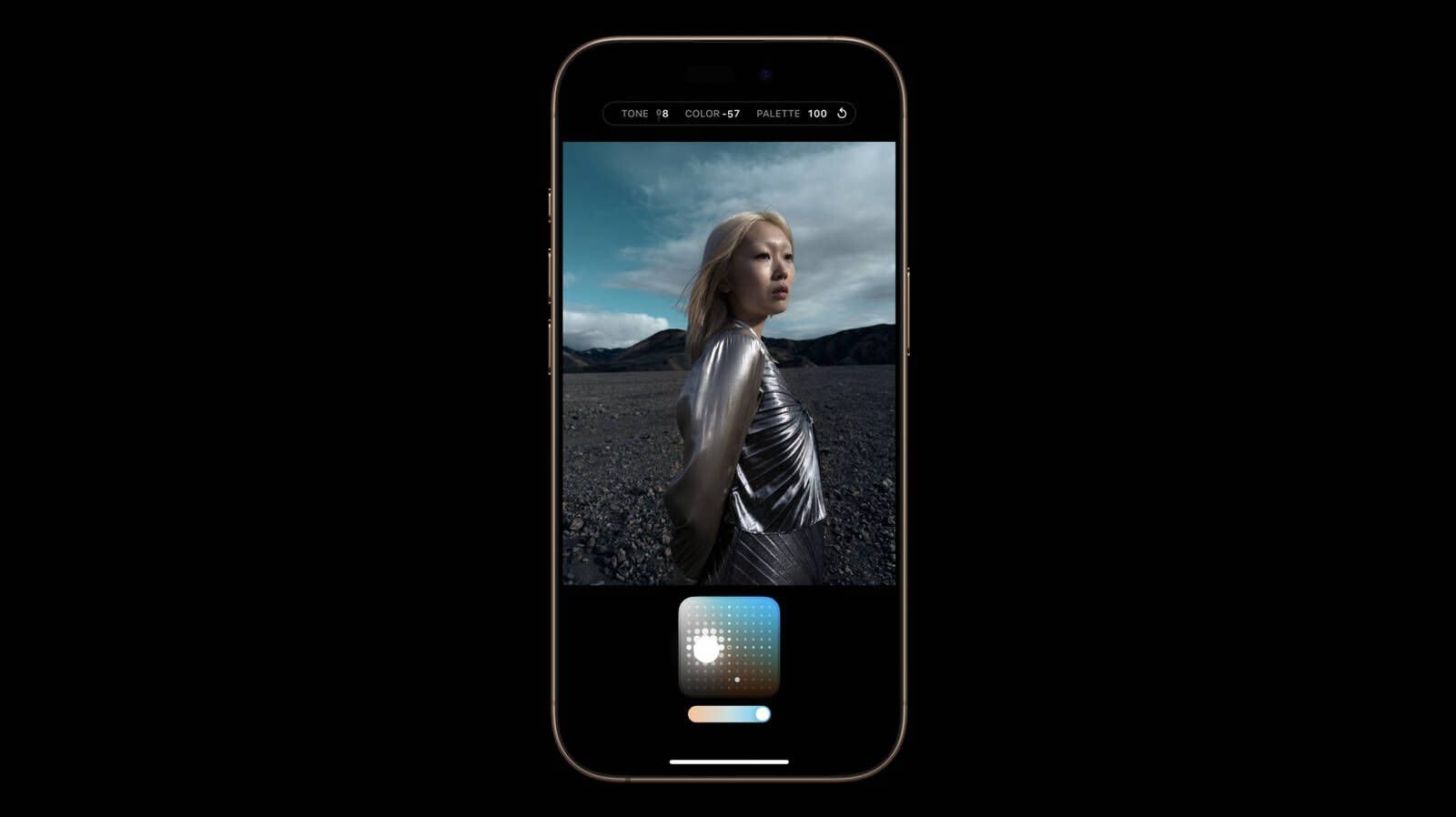
One of the major new software-based camera features in the iPhone 16 models is support for a wider range of Photographic Styles, complete with more granular controls to make for a setup where you can create a customized look for all of your images.
Photographic Styles isn't a feature that's quite as easy to use as something as simple as a filter, so we thought we'd delve into how it works and how to get the most from it.
Available Photographic Styles
Photographic Styles aren't new, but with prior iPhone models, there were only four options: Rich Contrast, Vibrant, Warm, and Cool. On the iPhone 16, there are several more pre-set styles to choose from.
Cool Rose
Neutral
Rose Gold
Gold
Amber
Standard (No edits)
Vibrant
Natural
Luminous
Dramatic
Quiet
Cozy
Ethereal
Muted Black and White
Stark Black and White
All of the styles have varying Tone, Color, and Palette settings, that correspond to brightness, saturation, and effect intensity.
How Photographic Styles Work
According to Apple, on the iPhone 16 models, Photographic Styles adjust specific colors in select parts of your photos to adjust the overall look.
The first five Photographic Styles are tuned for skin undertones, including Cool Rose, Neutral, Amber, Rose Gold, and Gold. Cool Rose accentuates cool pinkish undertones, while neutral neutralizes warm undertones. Amber, Rose Gold, and Gold accentuate those specific tones. These can be fairly subtle, depending on the settings you choose.
Other Styles are closer to what you get with a filter, adding more dramatic effects that impact the mood of the image.
Setting Up and Customizing Your Style
When you've taken at least four photos with the iPhone 16 camera, you can go to Settings > Camera > Photographic Styles to set the base tone that you want to use for all of your images.
You can pick from the skin tone-focused options, which include Cool Rose, Neutral, Amber, Rose Gold, and Gold. You'll see the different effects across four images, and you can adjust the intensity to begin with.
After you've selected a favorite undertone, you can further refine the look by dragging a finger over the touchpad, which changes the brightness and saturation. The slider changes the overall intensity.
Once you've set your Photographic Style, it's automatically applied to all of your images and it is the default value for your photos.
Camera > Photographic Styles > Reset to Standard.
Real-Time Previews
In the Camera app when you go take a photo, if you tap on the touchpad icon, you can select a different undertone or mood style. Swiping changes the Photographic Style, and the controls below can be used to customize the look.
The option to use customized Photographic Styles in real-time lets you preview what an image will look like with different effects before you even take it.
You can access Photographic Styles from the Camera Control button too. Press Camera Control once to open the Camera app, then light press to bring up the Camera Control menu. Swipe until you get to Styles or Tone, then light press again to select it. From there, you can make adjustments by swiping. To get back to the menu to select another option, use a light double press.
Editing After a Shot
You can add or adjust a Photographic Style after an image has been captured, so it's not something that you need to do in the moment. This is the first time that Apple has allowed Photographic Styles to be edited after the fact - earlier versions of this feature only allowed the Style to be applied when taking an image.
Photos app, tap on the three bars to enter the editing interface, and then tap on Styles. You can select any of the styles and then adjust it using the touchpad.
The touchpad's X axis adjusts color, while the Y axis adjusts tone. The slider adjusts overall intensity or Palette. A Tone setting of 0, a Color setting of 0, and a Palette setting of 0 result in a "Standard" photo that has no Photographic Style applied, so that's a good starting point to better understand exactly what each style is changing.
Adjusting the Color to the left desaturates, while dragging it to the right deepens color. Dragging Tone up makes the image brighter, while dragging it down makes it darker.
You can change the Photographic Style setting at any point, and it is a non-destructive edit so it's not permanent. If you want to get back to a normal, unedited photo, choose the Standard setting.
Photographic Styles are entirely distinct from the Photos app Adjust section where you can tweak exposure, brilliance, highlights and shadows, contrast, brightness, saturation, vibrance, warmth, tint, and more.
HEIF Only
If you have your iPhone set to take JPG images instead of HEIF, you won't be able to use Photographic Styles. You need to have HEIF turned on. In the Camera section of the Settings app, HEIF can be enabled by going to Formats and choosing "High Efficiency" instead of "Most Compatible."
Preserve Settings
By default, the Photographic Style that you set up using the Settings app will be used automatically. If you select a different Photographic Style when you're taking a photo, it will use that only until you close the Camera app.
Camera > Preserve Settings and toggle on Photographic Style. With this turned on, your iPhone will preserve your last used Photographic Style rather than reset to your default.
Photographic Styles and Older iPhones
Older iPhones do not support the new touchpad and adjustment settings for Photographic Styles, but if you take an image on an iPhone 16 and then edit it on an older phone, you can see the touchpad to make further adjustments.
Related Roundups: iPhone 16, iPhone 16 Pro
Buyer's Guide: iPhone 16 (Buy Now), iPhone 16 Pro (Buy Now)
This article, "Customizing Your iPhone 16 Images With Photographic Styles" first appeared on MacRumors.com
Discuss this article in our forums
MacRumors
Customizing Your iPhone 16 Images With Photographic Styles
One of the major new software-based camera features in the iPhone 16 models is support for a wider range of Photographic Styles, complete with more...
 Verizon is currently experiencing a major outage that is affecting many customers across the U.S., including iPhone users. Affected users may be unable to send or receive phone calls, send or receive text messages, or use cellular data.
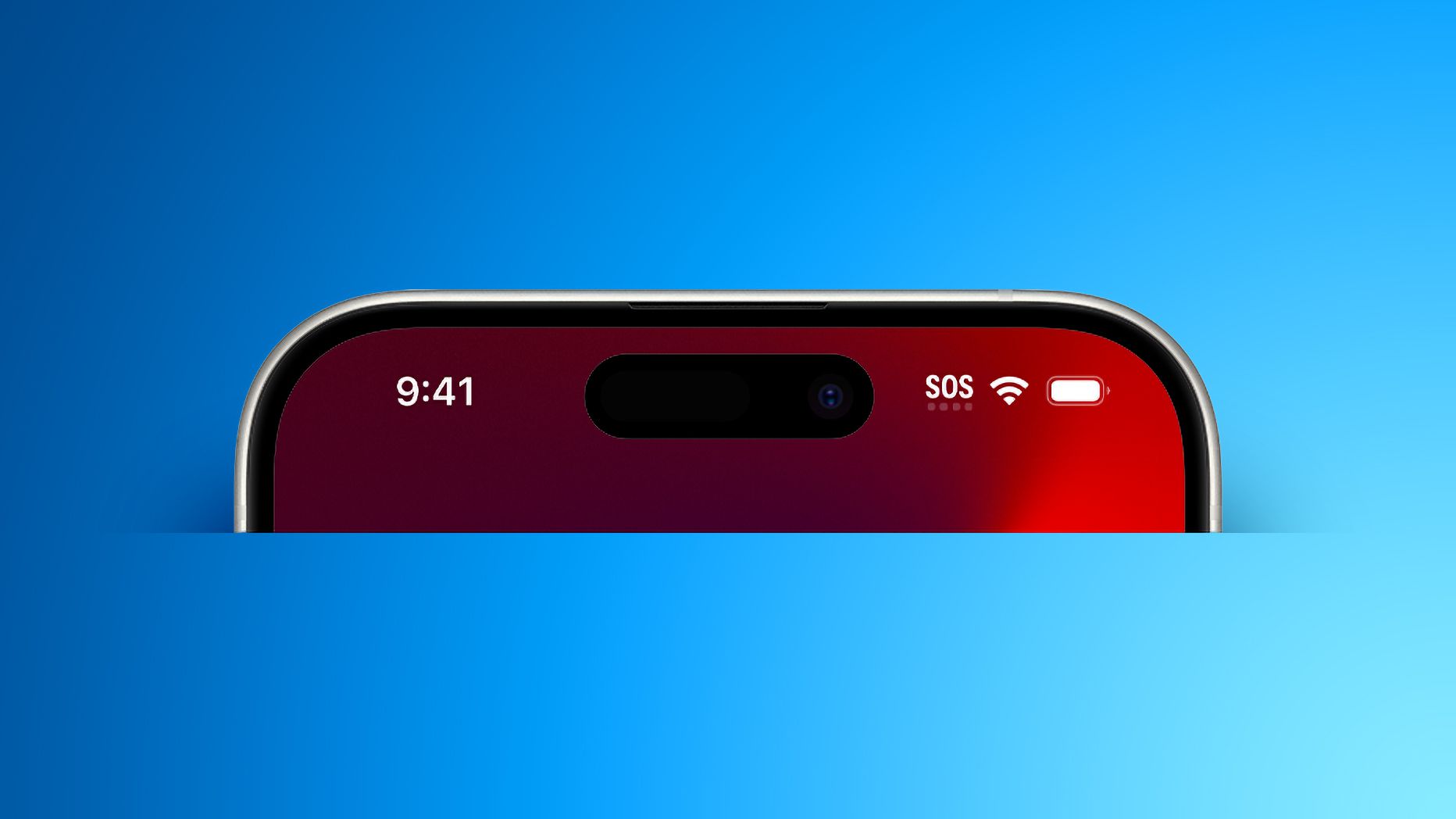
As a result of the network being down, many affected iPhone users are seeing "SOS" displayed in their device's status bar. In a support document, Apple says that an iPhone displays "SOS" when the device is not connected to a network, but it should still be possible to make emergency calls in the U.S., Australia, and Canada.
statement, Verizon said it is "aware of an issue impacting service for some customers" and working to identify and implement a fix.
Emergency SOS via satellite feature to text emergency services when you are in a supported area in the U.S. that lacks cellular and Wi-Fi coverage.
Tag: Verizon
This article, "iPhones Showing 'SOS' Due to Major Verizon Outage Across the U.S." first appeared on MacRumors.com
Discuss this article in our forums
Verizon is currently experiencing a major outage that is affecting many customers across the U.S., including iPhone users. Affected users may be unable to send or receive phone calls, send or receive text messages, or use cellular data.
As a result of the network being down, many affected iPhone users are seeing "SOS" displayed in their device's status bar. In a support document, Apple says that an iPhone displays "SOS" when the device is not connected to a network, but it should still be possible to make emergency calls in the U.S., Australia, and Canada.
statement, Verizon said it is "aware of an issue impacting service for some customers" and working to identify and implement a fix.
Emergency SOS via satellite feature to text emergency services when you are in a supported area in the U.S. that lacks cellular and Wi-Fi coverage.
Tag: Verizon
This article, "iPhones Showing 'SOS' Due to Major Verizon Outage Across the U.S." first appeared on MacRumors.com
Discuss this article in our forums
 Apple's iOS 18 update brings powerful new search functions to the Photos app, allowing you to find specific images with unprecedented precision. Here's how to make the most of its new capabilities.
In iOS 18, the key to effective searching in Photos is using natural language. Instead of simple keywords, try describing the photo you're looking for in detail. The app can now understand complex queries and find images based on specific elements within them.
For example, if you've previously identified friends and family using the People and Pets features, you can search for "Dad smiling" or "Snowy sleeping." The more specific you are, the better your results will be. You can even search for actions or emotions, like "kids laughing at swings" or "couple dancing at wedding."
The new search function is also pretty handy at finding objects and scenes. Try queries like "car next to lake" or "sunset over city skyline." You can combine multiple elements in your search, such as "yellow flowers in vase by window."
For food lovers, searches like "pizza with mushrooms" or "steak and chips on table" can help you find culinary inspirations from your photo library. When searching for people, you can now include details about their appearance or actions. "Mum in green hat with wine glass" or "Emma in wedding dress" are examples of how specific you can get.
The Photos app can even search within videos. If you remember a specific moment in a video but can't recall which one, try describing the scene. For instance, "baby crawling" or "fireworks over lake" can take you directly to that moment.
Note that for these advanced search features to work, the Photos app needs time to index your library. This process happens on your device to protect your privacy, so be patient if searches aren't immediately accurate after updating to iOS 18.
This article, "iOS 18: Master the New Search Features in the Photos App" first appeared on MacRumors.com
Discuss this article in our forums
Apple's iOS 18 update brings powerful new search functions to the Photos app, allowing you to find specific images with unprecedented precision. Here's how to make the most of its new capabilities.
In iOS 18, the key to effective searching in Photos is using natural language. Instead of simple keywords, try describing the photo you're looking for in detail. The app can now understand complex queries and find images based on specific elements within them.
For example, if you've previously identified friends and family using the People and Pets features, you can search for "Dad smiling" or "Snowy sleeping." The more specific you are, the better your results will be. You can even search for actions or emotions, like "kids laughing at swings" or "couple dancing at wedding."
The new search function is also pretty handy at finding objects and scenes. Try queries like "car next to lake" or "sunset over city skyline." You can combine multiple elements in your search, such as "yellow flowers in vase by window."
For food lovers, searches like "pizza with mushrooms" or "steak and chips on table" can help you find culinary inspirations from your photo library. When searching for people, you can now include details about their appearance or actions. "Mum in green hat with wine glass" or "Emma in wedding dress" are examples of how specific you can get.
The Photos app can even search within videos. If you remember a specific moment in a video but can't recall which one, try describing the scene. For instance, "baby crawling" or "fireworks over lake" can take you directly to that moment.
Note that for these advanced search features to work, the Photos app needs time to index your library. This process happens on your device to protect your privacy, so be patient if searches aren't immediately accurate after updating to iOS 18.
This article, "iOS 18: Master the New Search Features in the Photos App" first appeared on MacRumors.com
Discuss this article in our forums
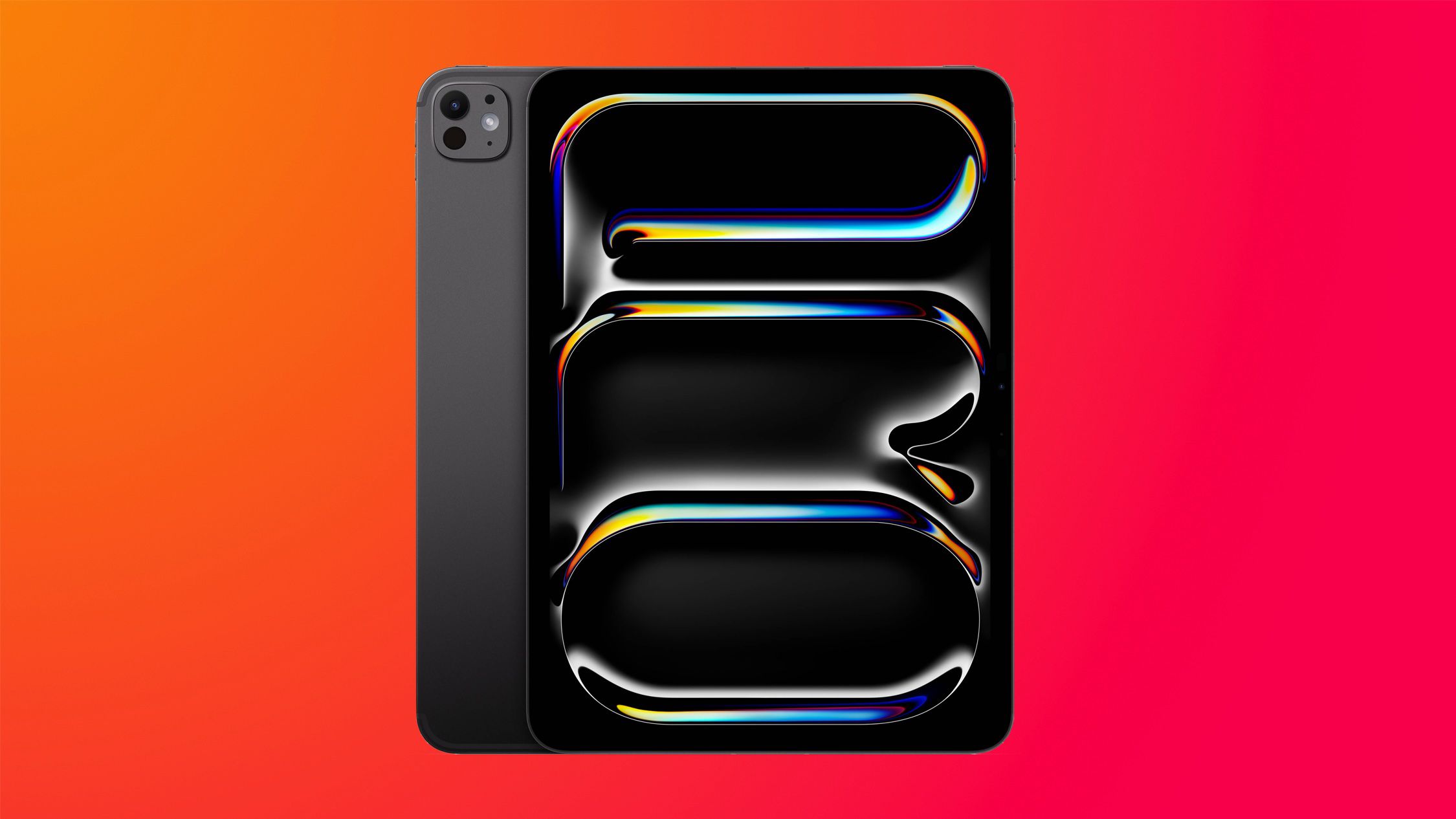
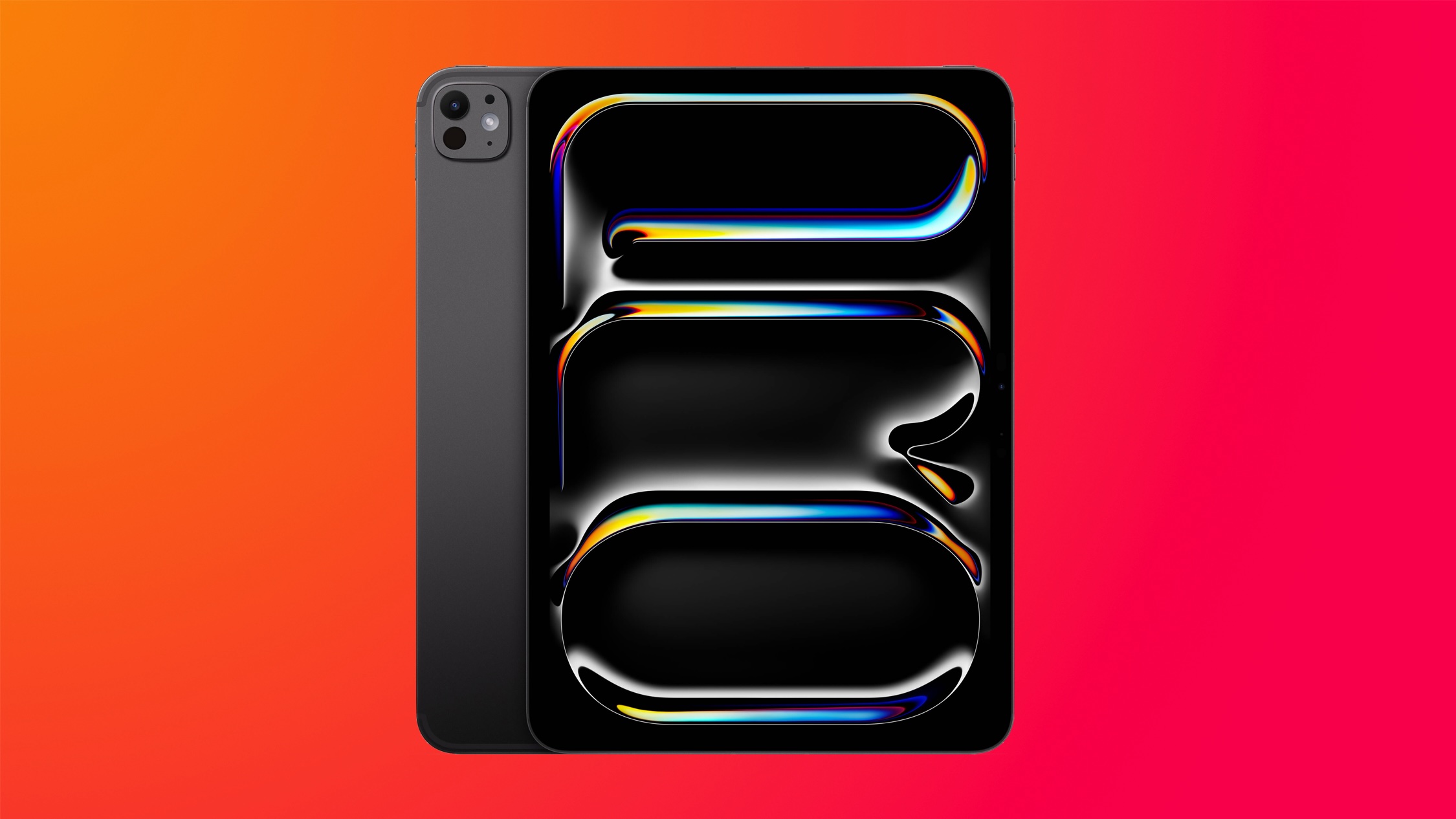 Today we're tracking big discounts across the entire M4 iPad Pro lineup on Amazon, with up to $200 in savings available during this sale. We're focusing on the Wi-Fi models of the 11-inch and 13-inch iPad Pro in this article, but you can also find numerous cellular tablets on sale at this time.
Note: MacRumors is an affiliate partner with Amazon. When you click a link and make a purchase, we may receive a small payment, which helps us keep the site running.
$929.00 for the 256GB Wi-Fi 11-inch M4 iPad Pro, down from $999.00, which is a solid second-best price on the tablet. Overall, you'll find every Wi-Fi model of both sizes available at a discount on Amazon, with multiple record low prices available on both tablets.
11-Inch
256GB Wi-Fi - $929.00 ($70 off)
512GB Wi-Fi - $1,099.00 ($100 off)
1TB Wi-Fi - $1,475.00 ($124 off)
1TB Wi-Fi with Nano-Texture Glass - $1,593.00 ($106 off)
2TB Wi-Fi - $1,845.00 ($154 off)
2TB Wi-Fi with Nano-Texture Glass - $1,934.00 ($165 off)
13-Inch
256GB Wi-Fi - $1,198.00 ($101 off)
512GB Wi-Fi - $1,386.00 ($113 off)
1TB Wi-Fi - $1,748.00 ($151 off)
1TB Wi-Fi with Nano-Texture Glass - $1,843.00 ($156 off)
2TB Wi-Fi - $2,099.00 ($200 off)
2TB Wi-Fi with Nano-Texture Glass - $2,199.00 ($200 off)
Head to our full Deals Roundup to get caught up with all of the latest deals and discounts that we've been tracking over the past week.
Related Roundup: Apple Deals
This article, "Amazon Discounts Collection of M4 iPad Pro Models at Up to $200 Off" first appeared on MacRumors.com
Discuss this article in our forums
Today we're tracking big discounts across the entire M4 iPad Pro lineup on Amazon, with up to $200 in savings available during this sale. We're focusing on the Wi-Fi models of the 11-inch and 13-inch iPad Pro in this article, but you can also find numerous cellular tablets on sale at this time.
Note: MacRumors is an affiliate partner with Amazon. When you click a link and make a purchase, we may receive a small payment, which helps us keep the site running.
$929.00 for the 256GB Wi-Fi 11-inch M4 iPad Pro, down from $999.00, which is a solid second-best price on the tablet. Overall, you'll find every Wi-Fi model of both sizes available at a discount on Amazon, with multiple record low prices available on both tablets.
11-Inch
256GB Wi-Fi - $929.00 ($70 off)
512GB Wi-Fi - $1,099.00 ($100 off)
1TB Wi-Fi - $1,475.00 ($124 off)
1TB Wi-Fi with Nano-Texture Glass - $1,593.00 ($106 off)
2TB Wi-Fi - $1,845.00 ($154 off)
2TB Wi-Fi with Nano-Texture Glass - $1,934.00 ($165 off)
13-Inch
256GB Wi-Fi - $1,198.00 ($101 off)
512GB Wi-Fi - $1,386.00 ($113 off)
1TB Wi-Fi - $1,748.00 ($151 off)
1TB Wi-Fi with Nano-Texture Glass - $1,843.00 ($156 off)
2TB Wi-Fi - $2,099.00 ($200 off)
2TB Wi-Fi with Nano-Texture Glass - $2,199.00 ($200 off)
Head to our full Deals Roundup to get caught up with all of the latest deals and discounts that we've been tracking over the past week.
Related Roundup: Apple Deals
This article, "Amazon Discounts Collection of M4 iPad Pro Models at Up to $200 Off" first appeared on MacRumors.com
Discuss this article in our forums
 In a social media post today, Apple CEO Tim Cook said that Apple will be making a donation of an undisclosed amount to Hurricane Helene relief efforts.
"We're thinking of all those facing the catastrophic aftermath of Hurricane Helene," said Cook. "Apple will be making a donation to help with relief efforts on the ground."
reportedly more than 100 deaths.
Tag: Tim Cook
This article, "Apple to Donate Towards Hurricane Helene Relief Efforts, Tim Cook Says" first appeared on MacRumors.com
Discuss this article in our forums
In a social media post today, Apple CEO Tim Cook said that Apple will be making a donation of an undisclosed amount to Hurricane Helene relief efforts.
"We're thinking of all those facing the catastrophic aftermath of Hurricane Helene," said Cook. "Apple will be making a donation to help with relief efforts on the ground."
reportedly more than 100 deaths.
Tag: Tim Cook
This article, "Apple to Donate Towards Hurricane Helene Relief Efforts, Tim Cook Says" first appeared on MacRumors.com
Discuss this article in our forums
 Apple is retreating from its ambitious plans for wide theatrical movie releases after several of its high-budget films failed to meet box office expectations, Bloomberg reports.
Apple is believed to have initially set aside $1 billion annually to produce big-budget films for cinemas, aiming to compete with traditional Hollywood studios. The company's goal was ostensibly to release a series of blockbuster movies that could drive ticket sales, win prestigious awards, and elevate its profile in the film industry.
Killers of the Flower Moon, Ridley Scott's Napoleon, and Matthew Vaughn's Argylle were expected to perform strongly at the box office, but each delivered disappointing results. As a result, Apple is now said to be scaling back these plans with a growing emphasis on using limited theatrical windows to qualify for awards while primarily marketing its films as streaming titles.
cancellation of the wide global release of Wolfs, an action comedy starring George Clooney and Brad Pitt. The film had originally been slated for a broad theatrical debut in thousands of cinemas around the world. Instead, it was released in a limited number of theaters before becoming available for streaming on Apple TV+ on September 27.
Apple's leadership has reportedly been seeking to rein in costs across its entertainment division. While the company is said to remain committed to its $1 billion annual film budget, it will now focus on producing fewer high-budget films, reducing the number of theatrical releases, and scaling down the average production cost of its movies. According to sources familiar with the company's plans, Apple will continue to produce about a dozen films per year, most with budgets under $100 million.
F1, starring Brad Pitt, which is set for a global release in June 2025. F1 is expected to be Apple's most expensive movie to date, with a reported production budget of over $300 million.
Tags: Apple TV Plus, Bloomberg
This article, "Report: Apple TV+ Pivoting Movie Strategy Amid Disappointing Performance" first appeared on MacRumors.com
Discuss this article in our forums
Apple is retreating from its ambitious plans for wide theatrical movie releases after several of its high-budget films failed to meet box office expectations, Bloomberg reports.
Apple is believed to have initially set aside $1 billion annually to produce big-budget films for cinemas, aiming to compete with traditional Hollywood studios. The company's goal was ostensibly to release a series of blockbuster movies that could drive ticket sales, win prestigious awards, and elevate its profile in the film industry.
Killers of the Flower Moon, Ridley Scott's Napoleon, and Matthew Vaughn's Argylle were expected to perform strongly at the box office, but each delivered disappointing results. As a result, Apple is now said to be scaling back these plans with a growing emphasis on using limited theatrical windows to qualify for awards while primarily marketing its films as streaming titles.
cancellation of the wide global release of Wolfs, an action comedy starring George Clooney and Brad Pitt. The film had originally been slated for a broad theatrical debut in thousands of cinemas around the world. Instead, it was released in a limited number of theaters before becoming available for streaming on Apple TV+ on September 27.
Apple's leadership has reportedly been seeking to rein in costs across its entertainment division. While the company is said to remain committed to its $1 billion annual film budget, it will now focus on producing fewer high-budget films, reducing the number of theatrical releases, and scaling down the average production cost of its movies. According to sources familiar with the company's plans, Apple will continue to produce about a dozen films per year, most with budgets under $100 million.
F1, starring Brad Pitt, which is set for a global release in June 2025. F1 is expected to be Apple's most expensive movie to date, with a reported production budget of over $300 million.
Tags: Apple TV Plus, Bloomberg
This article, "Report: Apple TV+ Pivoting Movie Strategy Amid Disappointing Performance" first appeared on MacRumors.com
Discuss this article in our forums

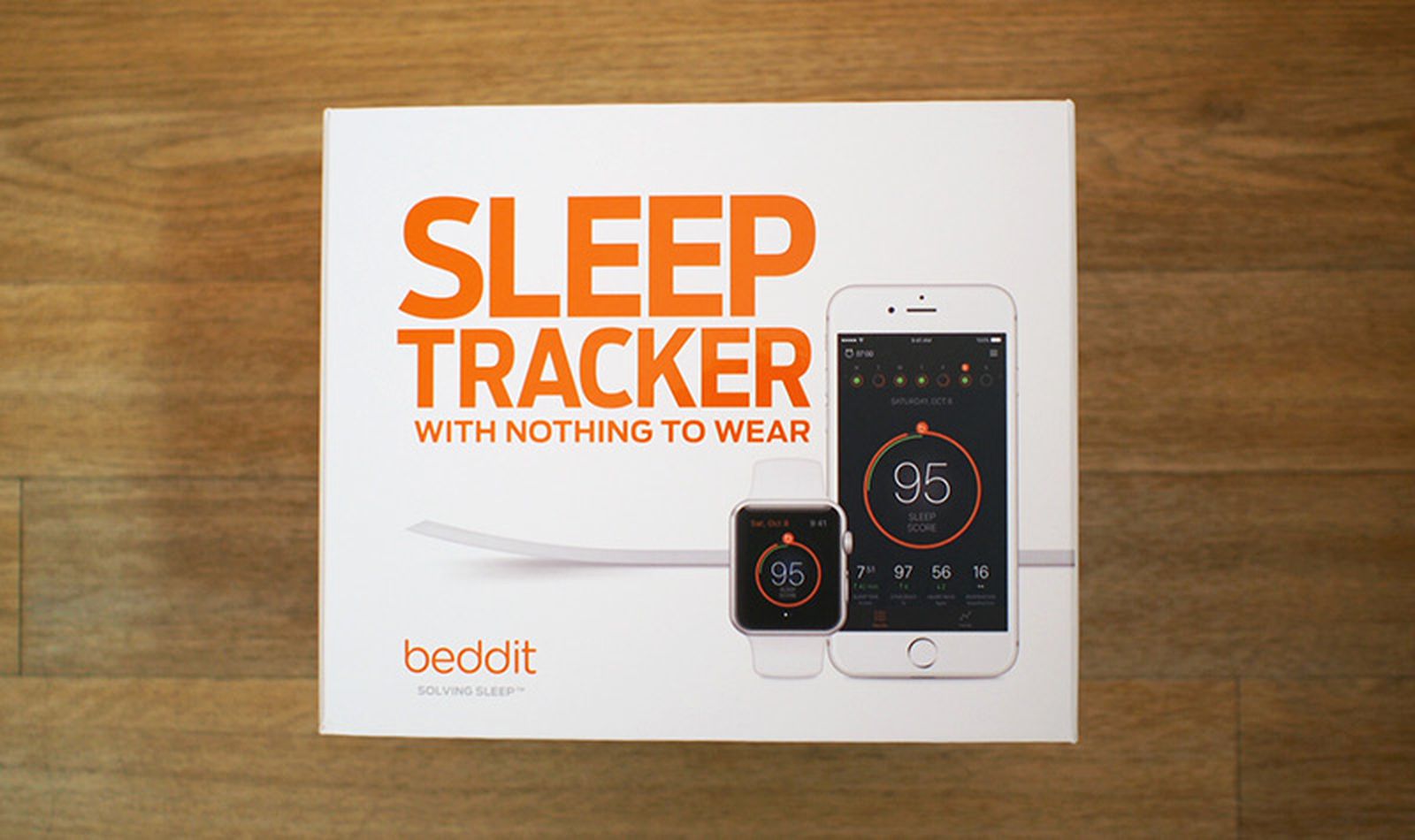
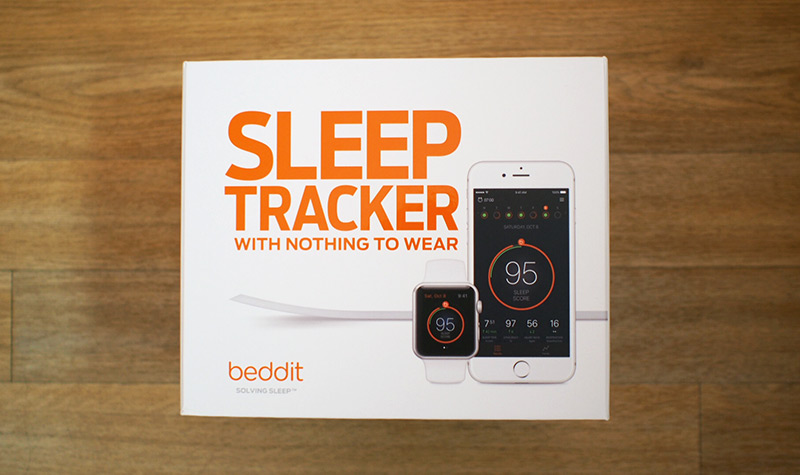 The slow death of the Beddit sleep monitoring accessory continues.
Apple last week removed the iPhone apps for Beddit models 3.0 and 3.5 from the App Store, according to MacRumors contributor Aaron Perris.
acquired Beddit in 2017, and it has gradually reduced hardware and software capabilities and support for the accessory since. Apple removed cloud syncing from the original Beddit app in 2018, released an updated version of the accessory with fewer features in 2019, and stopped selling the accessory entirely in 2022.
Beddit's thin, flexible sensor strip could be placed on a mattress for sleep tracking purposes. It is likely that Apple acquired Beddit to bolster development of sleep tracking on the Apple Watch, which debuted as part of watchOS 7 in 2020.
Tag: Beddit
This article, "Apple Removes Beddit Apps From App Store Following 2017 Acquisition" first appeared on MacRumors.com
Discuss this article in our forums
The slow death of the Beddit sleep monitoring accessory continues.
Apple last week removed the iPhone apps for Beddit models 3.0 and 3.5 from the App Store, according to MacRumors contributor Aaron Perris.
acquired Beddit in 2017, and it has gradually reduced hardware and software capabilities and support for the accessory since. Apple removed cloud syncing from the original Beddit app in 2018, released an updated version of the accessory with fewer features in 2019, and stopped selling the accessory entirely in 2022.
Beddit's thin, flexible sensor strip could be placed on a mattress for sleep tracking purposes. It is likely that Apple acquired Beddit to bolster development of sleep tracking on the Apple Watch, which debuted as part of watchOS 7 in 2020.
Tag: Beddit
This article, "Apple Removes Beddit Apps From App Store Following 2017 Acquisition" first appeared on MacRumors.com
Discuss this article in our forums
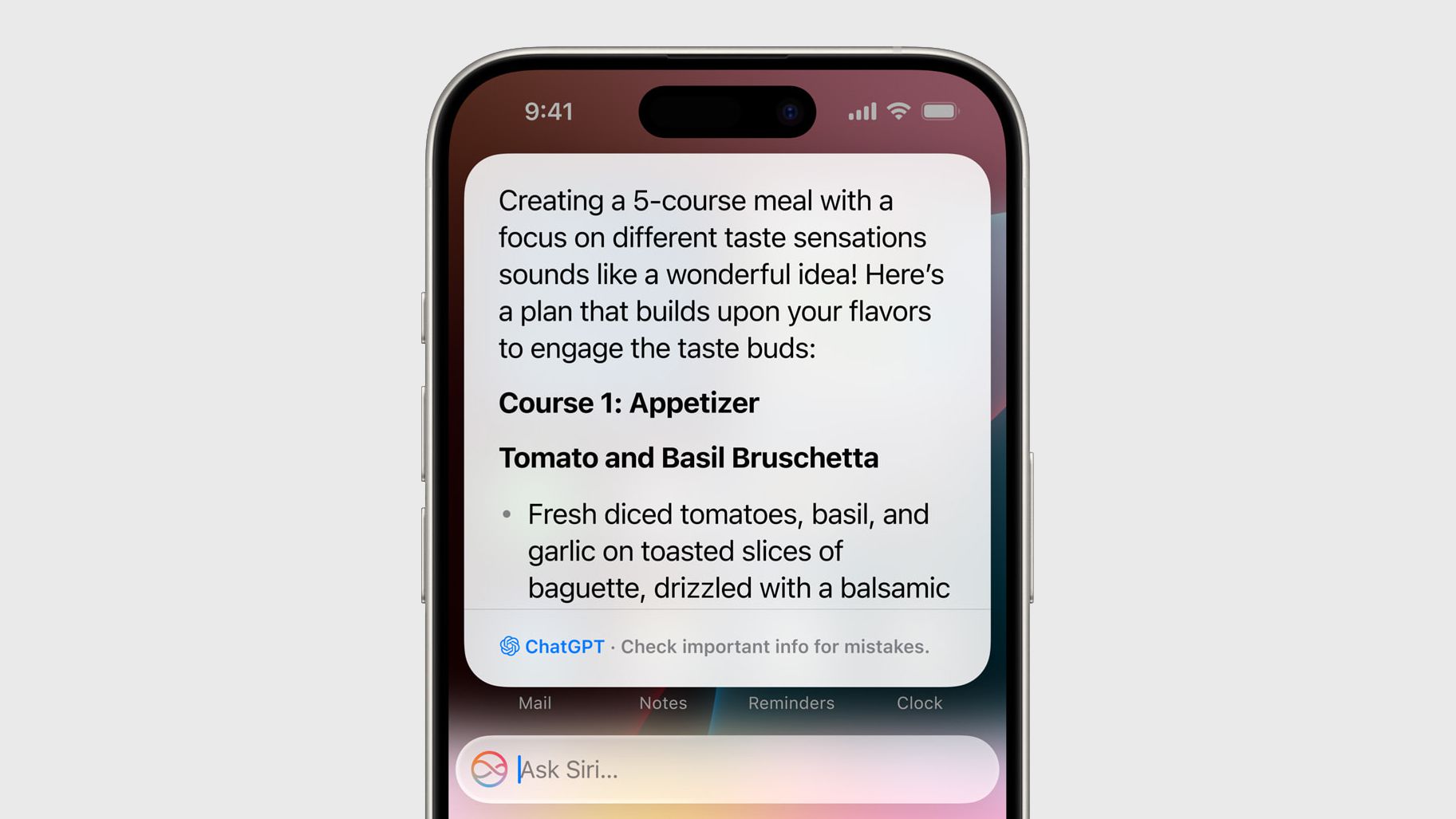
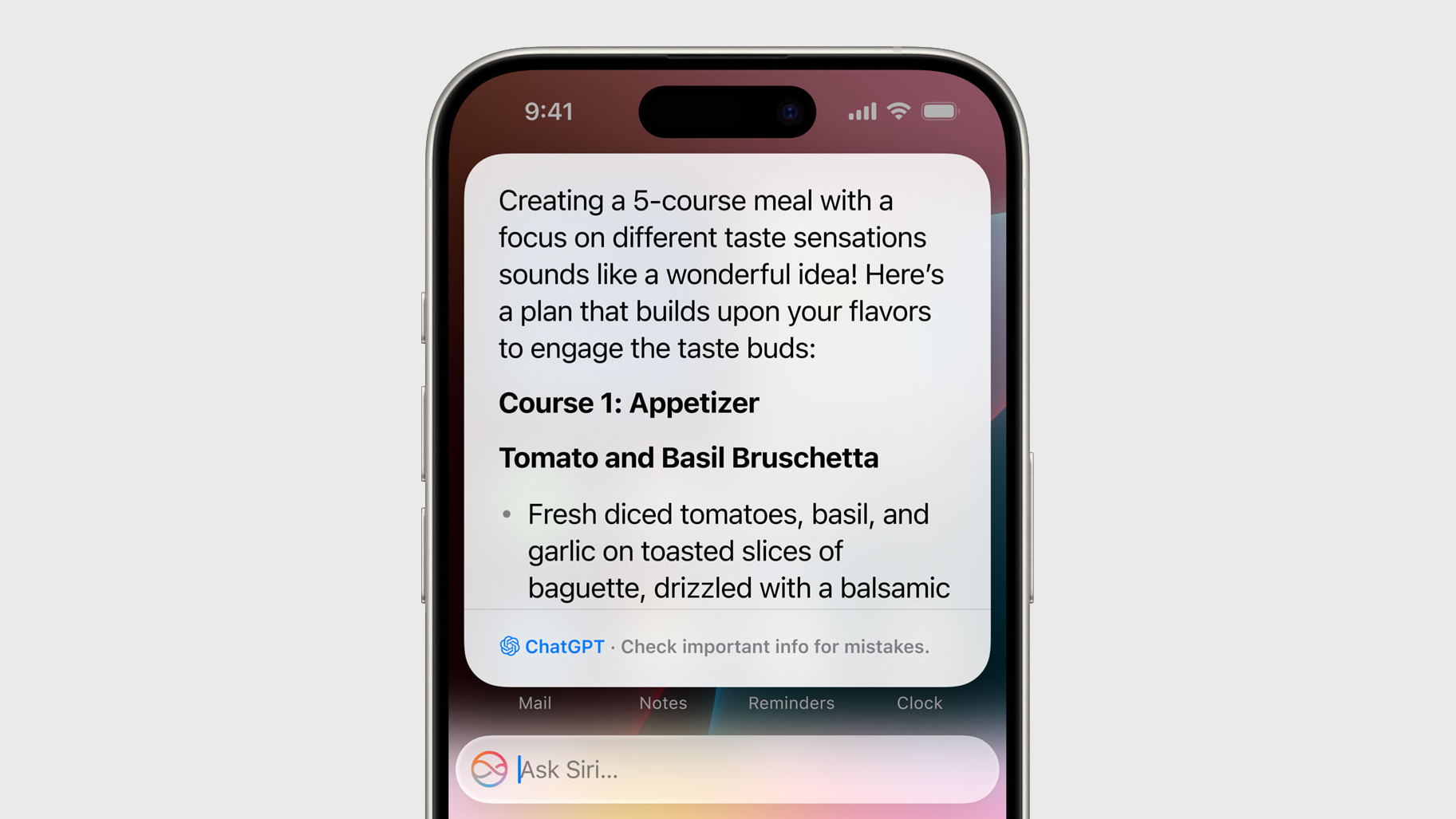 Apple has reportedly exited negotiations to invest in OpenAI, the company behind the popular ChatGPT AI chatbot, according to The Wall Street Journal.
Apple had been in discussions to participate in a funding round for OpenAI that is expected to raise approximately $6.5 billion. However, Apple recently dropped out of the talks for reasons that remain unclear. The funding round is set to close this week.
WSJ reported that Apple was considering an investment in OpenAI as part of a fundraising effort that could value the AI company at over $100 billion. The high valuation reflects the intense competition in the artificial intelligence sector that OpenAI helped ignite with ChatGPT's launch in late 2022.
While Apple has stepped away, other major tech companies remain involved. Microsoft, which has already invested $13 billion in OpenAI, is expected to contribute about $1 billion to this latest round. Nvidia is also reportedly in talks to participate.
turmoil within OpenAI's ranks as it pursues a for-profit structure, may have factored into Apple's decision not to pursue the investment.
Tags: ChatGPT, OpenAI
This article, "Apple No Longer in Talks to Invest in ChatGPT Maker OpenAI" first appeared on MacRumors.com
Discuss this article in our forums
Apple has reportedly exited negotiations to invest in OpenAI, the company behind the popular ChatGPT AI chatbot, according to The Wall Street Journal.
Apple had been in discussions to participate in a funding round for OpenAI that is expected to raise approximately $6.5 billion. However, Apple recently dropped out of the talks for reasons that remain unclear. The funding round is set to close this week.
WSJ reported that Apple was considering an investment in OpenAI as part of a fundraising effort that could value the AI company at over $100 billion. The high valuation reflects the intense competition in the artificial intelligence sector that OpenAI helped ignite with ChatGPT's launch in late 2022.
While Apple has stepped away, other major tech companies remain involved. Microsoft, which has already invested $13 billion in OpenAI, is expected to contribute about $1 billion to this latest round. Nvidia is also reportedly in talks to participate.
turmoil within OpenAI's ranks as it pursues a for-profit structure, may have factored into Apple's decision not to pursue the investment.
Tags: ChatGPT, OpenAI
This article, "Apple No Longer in Talks to Invest in ChatGPT Maker OpenAI" first appeared on MacRumors.com
Discuss this article in our forums
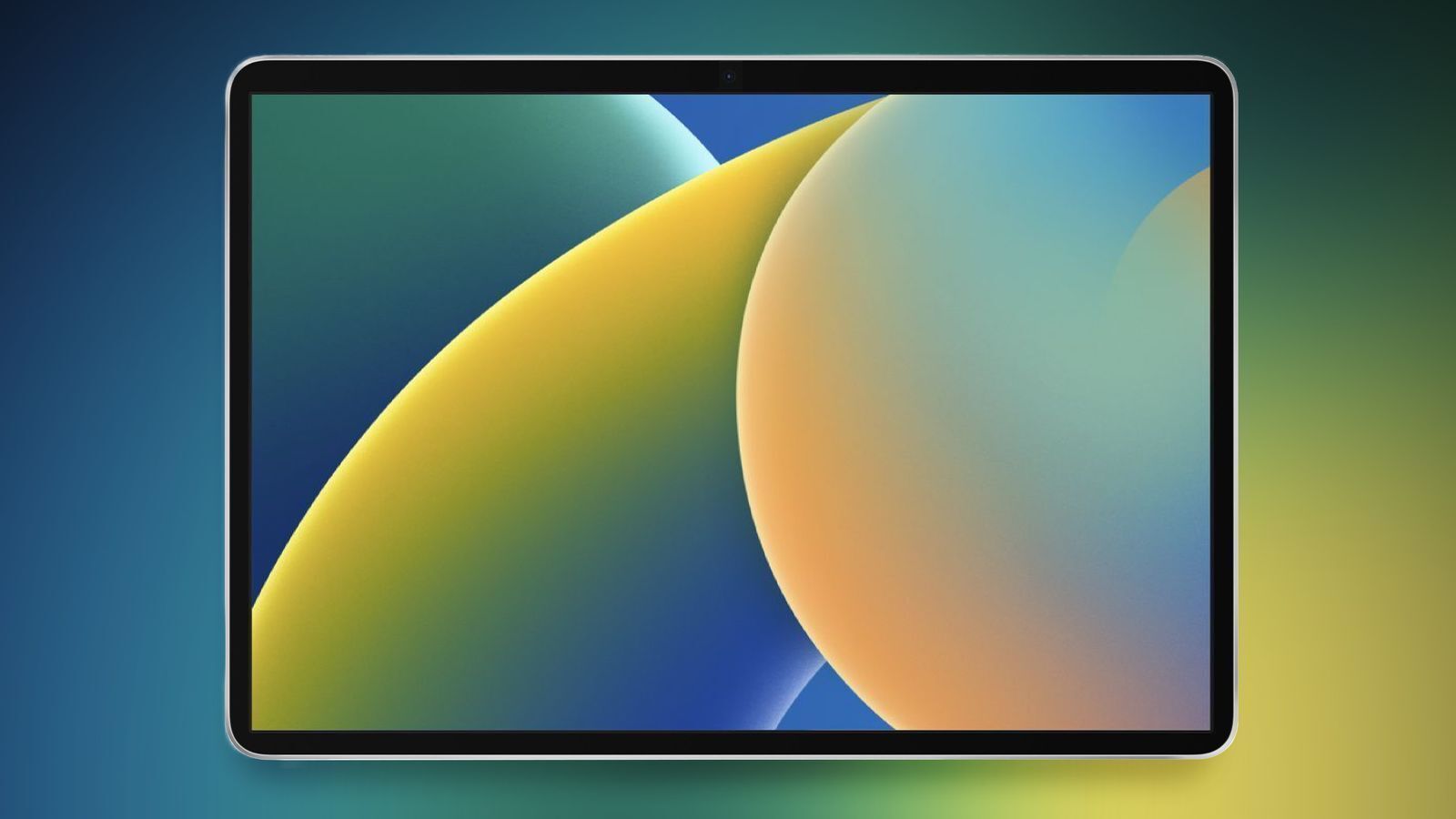 Apple could release an iPad-like smart home accessory based on its homeOS platform as early as next year, according to Bloomberg's Mark Gurman.
Writing in his latest Power On newsletter, Gurman reports that the display will run Apple apps like Calendar, Notes, and Home, and will feature an interface "optimized for controlling home appliances and quickly seeing information."
Apple's existing Apple TV and HomePod lineup already offer home hub functionality, but crucially lack the hardware to run AI models. In contrast, Apple Intelligence will be central to the new home accessory, which is actually a "lower-end companion" to a $1,000+ robotic device for the home, writes Gurman.
rumored for some time. Prototype designs are said to have resembled a HomePod with a screen (magnetically attaching to walls or sitting atop a desk), and an iPad-like display mounted on a robotic arm. Both accessories are said to be collaborations between Apple's AI and home device hardware engineering groups.
MacRumors in January suggested that Apple was continuing work on a homeOS platform, as a variant of tvOS. Another code reference finding in June subsequently confirmed the existence of at least one unreleased home accessory.
9to5Mac has claimed that the lower-end smart home device features a "squarish display", an A18 chip, and a built-in camera for FaceTime. The device apparently supports AirPlay, is able to identify hand gestures from afar, and can tell one person apart from another for personalized requests. 9to5Mac says Apple could release the home product as early as next spring.
Tags: Apple Smart Home Display, Mark Gurman
This article, "Apple May Launch First iPad-Like Smart Home Accessory Next Year" first appeared on MacRumors.com
Discuss this article in our forums
Apple could release an iPad-like smart home accessory based on its homeOS platform as early as next year, according to Bloomberg's Mark Gurman.
Writing in his latest Power On newsletter, Gurman reports that the display will run Apple apps like Calendar, Notes, and Home, and will feature an interface "optimized for controlling home appliances and quickly seeing information."
Apple's existing Apple TV and HomePod lineup already offer home hub functionality, but crucially lack the hardware to run AI models. In contrast, Apple Intelligence will be central to the new home accessory, which is actually a "lower-end companion" to a $1,000+ robotic device for the home, writes Gurman.
rumored for some time. Prototype designs are said to have resembled a HomePod with a screen (magnetically attaching to walls or sitting atop a desk), and an iPad-like display mounted on a robotic arm. Both accessories are said to be collaborations between Apple's AI and home device hardware engineering groups.
MacRumors in January suggested that Apple was continuing work on a homeOS platform, as a variant of tvOS. Another code reference finding in June subsequently confirmed the existence of at least one unreleased home accessory.
9to5Mac has claimed that the lower-end smart home device features a "squarish display", an A18 chip, and a built-in camera for FaceTime. The device apparently supports AirPlay, is able to identify hand gestures from afar, and can tell one person apart from another for personalized requests. 9to5Mac says Apple could release the home product as early as next spring.
Tags: Apple Smart Home Display, Mark Gurman
This article, "Apple May Launch First iPad-Like Smart Home Accessory Next Year" first appeared on MacRumors.com
Discuss this article in our forums
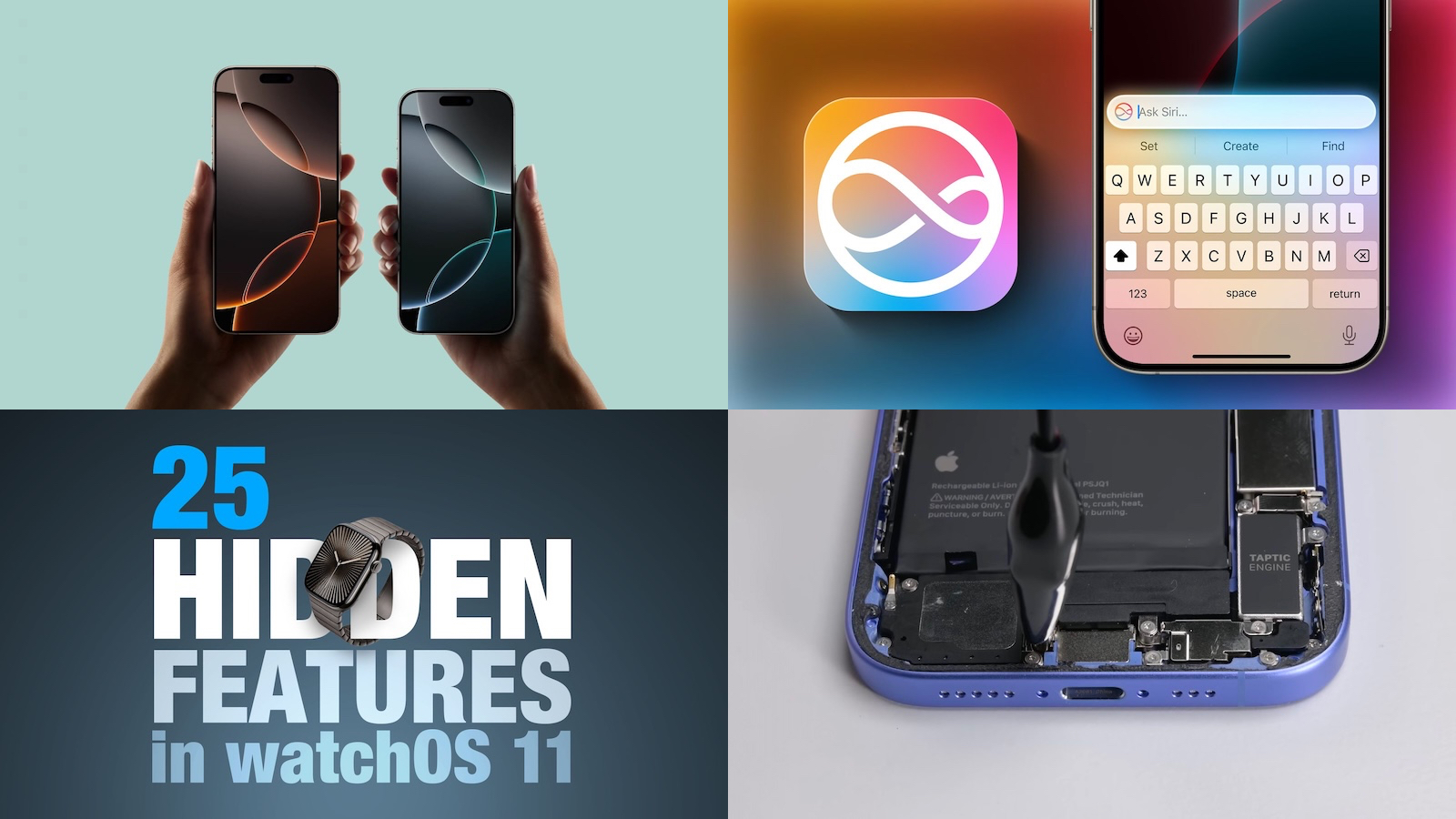 Apple's latest devices have been in users' hands for about a week now, so the latest features and upgrades are getting thoroughly tested as users figure out how best to take advantage of the improvements.
We're also still looking forward to additional enhancements like Apple Intelligence features coming in future software updates, while we took a look back at a long-term feature Apple launched with last year's iPhone models to see how it held up over the past year, so read on below for all the details on these stories and more!
iPhone 16 and iPhone 16 Pro: How to Use All the New Features
With some new things to get used to on Apple's latest iPhones, we've put together a thorough list of how-tos walking you through some of the new features like Camera Control, the Action button (for those who weren't on an iPhone 15 Pro model previously), updated Photographic Styles, Audio Mix, and more.
Apple's 80% Charging Limit for iPhone: How Much Did It Help After a Year?
With the iPhone 15 models that came out last year, Apple added an opt-in battery setting that limits maximum charge to 80 percent. The idea is that never charging the iPhone above 80 percent will increase battery longevity, so we ran a long-term test keeping a daily driver iPhone at that 80 percent limit from September 2023 to now, with no cheating.
Battery health definitely still took a drop over that yearlong period even with the limit engaged, but check out our report for the details and how it compared to other iPhones that didn't use the limit.
Apple Seeds Fifth Developer Betas of iOS 18.1 and iPadOS 18.1 With Apple Intelligence
Apple is continuing work on its first Apple Intelligence operating system updates, issuing a fresh round of betas this week for iOS 18.1 and other updates.
There are quite a few changes and additions in this beta, including tweaks to Control Center functionality, a new Camera Control option to access the front-facing camera, and the ability to drag and drop files between iPhone and Mac while using the iPhone Mirroring feature.
25 New Features You May Have Missed in watchOS 11
While iOS is the star of the show for each round of operating system updates given the popularity of the iPhone, Apple's other platforms also see significant updates most years.
This year is no exception, so we've put together a list of 25 new features in watchOS 11 that you may have missed. They range from new health and fitness features to entirely new apps and brand-new functionality, so be sure to check out the list.
iPhone 16's 'Revolutionary' Battery Removal Process Shown in Video
The iPhone 16 and iPhone 16 Plus include a clever new technology to assist in battery repairs, and that's the ability to use low-voltage electrical current to loosen the adhesive that holds the battery in, allowing a depleted battery to be easily removed and replaced.
The iPhone 16 Pro and iPhone 16 Pro Max do not include this technology, instead relying on the traditional stretch-release adhesive to secure their batteries, though the smaller iPhone 16 Pro includes a metal-enclosed battery for the first time rather than a foil-wrapped one.
Apple Announces iPhone Driver's Licenses Will Come to These Additional U.S. States
Following through on a previous announcement from Apple, California last week became the seventh U.S. state to support digital driver's licenses and IDs in Apple Wallet, rolling out its mDL pilot program to iOS. The feature is also currently supported in Arizona, Maryland, Colorado, Georgia, Ohio, and Hawaii.
In addition, Apple announced that Montana, New Mexico, and West Virginia have signed on to support the feature. A time frame for those new states is unclear, as it has been several years since other states like Connecticut, Iowa, Kentucky, Mississippi, Oklahoma, and Utah were announced as planning to support it but have yet to do so.
MacRumors Newsletter
Each week, we publish an email newsletter like this highlighting the top Apple stories, making it a great way to get a bite-sized recap of the week hitting all of the major topics we've covered and tying together related stories for a big-picture view.
top stories like the above recap delivered to your email inbox each week, subscribe to our newsletter!
Tag: Top Stories
This article, "Top Stories: iPhone 16 Features, iOS 18.1 Improvements, and More" first appeared on MacRumors.com
Discuss this article in our forums
Apple's latest devices have been in users' hands for about a week now, so the latest features and upgrades are getting thoroughly tested as users figure out how best to take advantage of the improvements.
We're also still looking forward to additional enhancements like Apple Intelligence features coming in future software updates, while we took a look back at a long-term feature Apple launched with last year's iPhone models to see how it held up over the past year, so read on below for all the details on these stories and more!
iPhone 16 and iPhone 16 Pro: How to Use All the New Features
With some new things to get used to on Apple's latest iPhones, we've put together a thorough list of how-tos walking you through some of the new features like Camera Control, the Action button (for those who weren't on an iPhone 15 Pro model previously), updated Photographic Styles, Audio Mix, and more.
Apple's 80% Charging Limit for iPhone: How Much Did It Help After a Year?
With the iPhone 15 models that came out last year, Apple added an opt-in battery setting that limits maximum charge to 80 percent. The idea is that never charging the iPhone above 80 percent will increase battery longevity, so we ran a long-term test keeping a daily driver iPhone at that 80 percent limit from September 2023 to now, with no cheating.
Battery health definitely still took a drop over that yearlong period even with the limit engaged, but check out our report for the details and how it compared to other iPhones that didn't use the limit.
Apple Seeds Fifth Developer Betas of iOS 18.1 and iPadOS 18.1 With Apple Intelligence
Apple is continuing work on its first Apple Intelligence operating system updates, issuing a fresh round of betas this week for iOS 18.1 and other updates.
There are quite a few changes and additions in this beta, including tweaks to Control Center functionality, a new Camera Control option to access the front-facing camera, and the ability to drag and drop files between iPhone and Mac while using the iPhone Mirroring feature.
25 New Features You May Have Missed in watchOS 11
While iOS is the star of the show for each round of operating system updates given the popularity of the iPhone, Apple's other platforms also see significant updates most years.
This year is no exception, so we've put together a list of 25 new features in watchOS 11 that you may have missed. They range from new health and fitness features to entirely new apps and brand-new functionality, so be sure to check out the list.
iPhone 16's 'Revolutionary' Battery Removal Process Shown in Video
The iPhone 16 and iPhone 16 Plus include a clever new technology to assist in battery repairs, and that's the ability to use low-voltage electrical current to loosen the adhesive that holds the battery in, allowing a depleted battery to be easily removed and replaced.
The iPhone 16 Pro and iPhone 16 Pro Max do not include this technology, instead relying on the traditional stretch-release adhesive to secure their batteries, though the smaller iPhone 16 Pro includes a metal-enclosed battery for the first time rather than a foil-wrapped one.
Apple Announces iPhone Driver's Licenses Will Come to These Additional U.S. States
Following through on a previous announcement from Apple, California last week became the seventh U.S. state to support digital driver's licenses and IDs in Apple Wallet, rolling out its mDL pilot program to iOS. The feature is also currently supported in Arizona, Maryland, Colorado, Georgia, Ohio, and Hawaii.
In addition, Apple announced that Montana, New Mexico, and West Virginia have signed on to support the feature. A time frame for those new states is unclear, as it has been several years since other states like Connecticut, Iowa, Kentucky, Mississippi, Oklahoma, and Utah were announced as planning to support it but have yet to do so.
MacRumors Newsletter
Each week, we publish an email newsletter like this highlighting the top Apple stories, making it a great way to get a bite-sized recap of the week hitting all of the major topics we've covered and tying together related stories for a big-picture view.
top stories like the above recap delivered to your email inbox each week, subscribe to our newsletter!
Tag: Top Stories
This article, "Top Stories: iPhone 16 Features, iOS 18.1 Improvements, and More" first appeared on MacRumors.com
Discuss this article in our forums
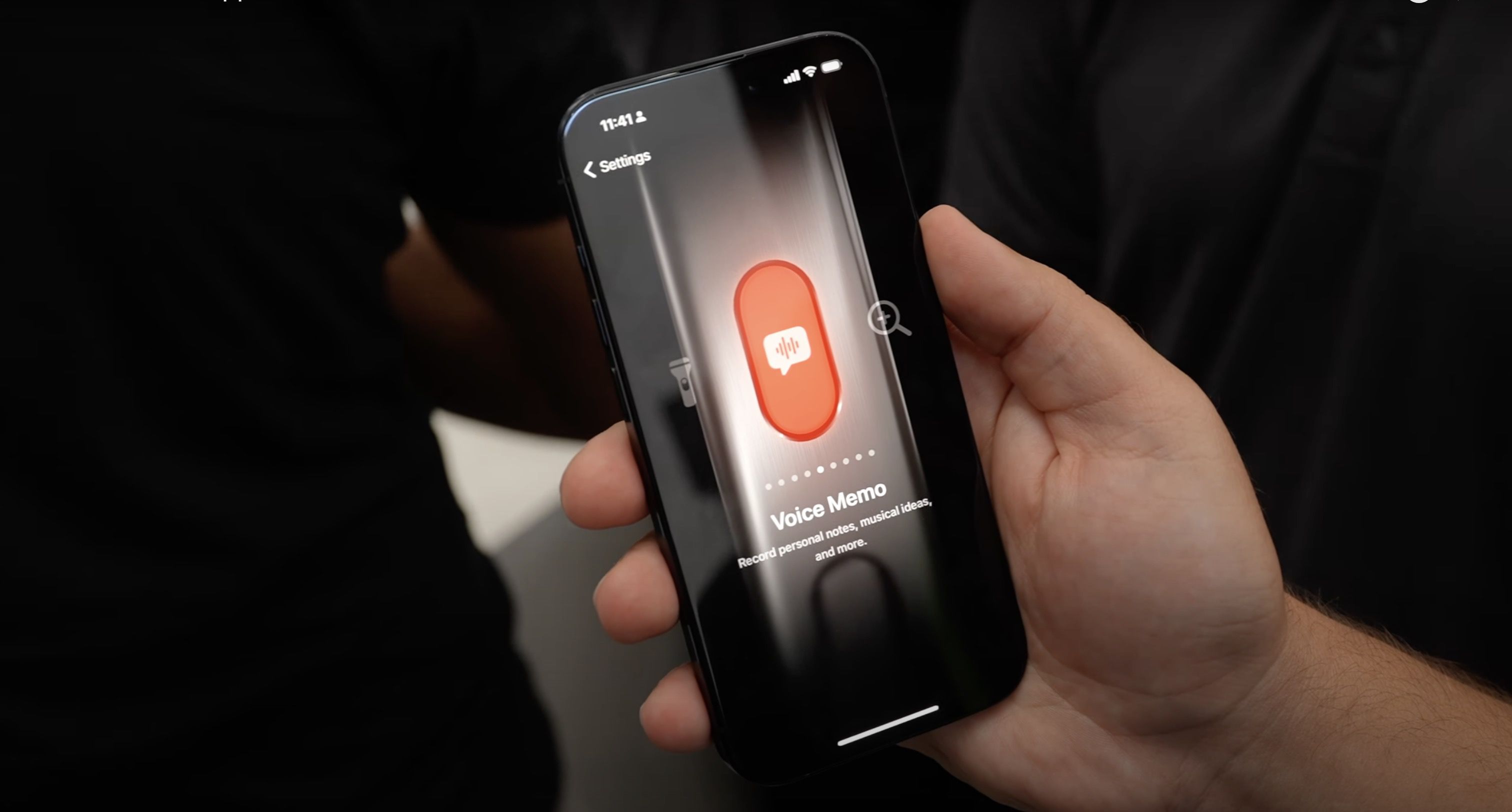
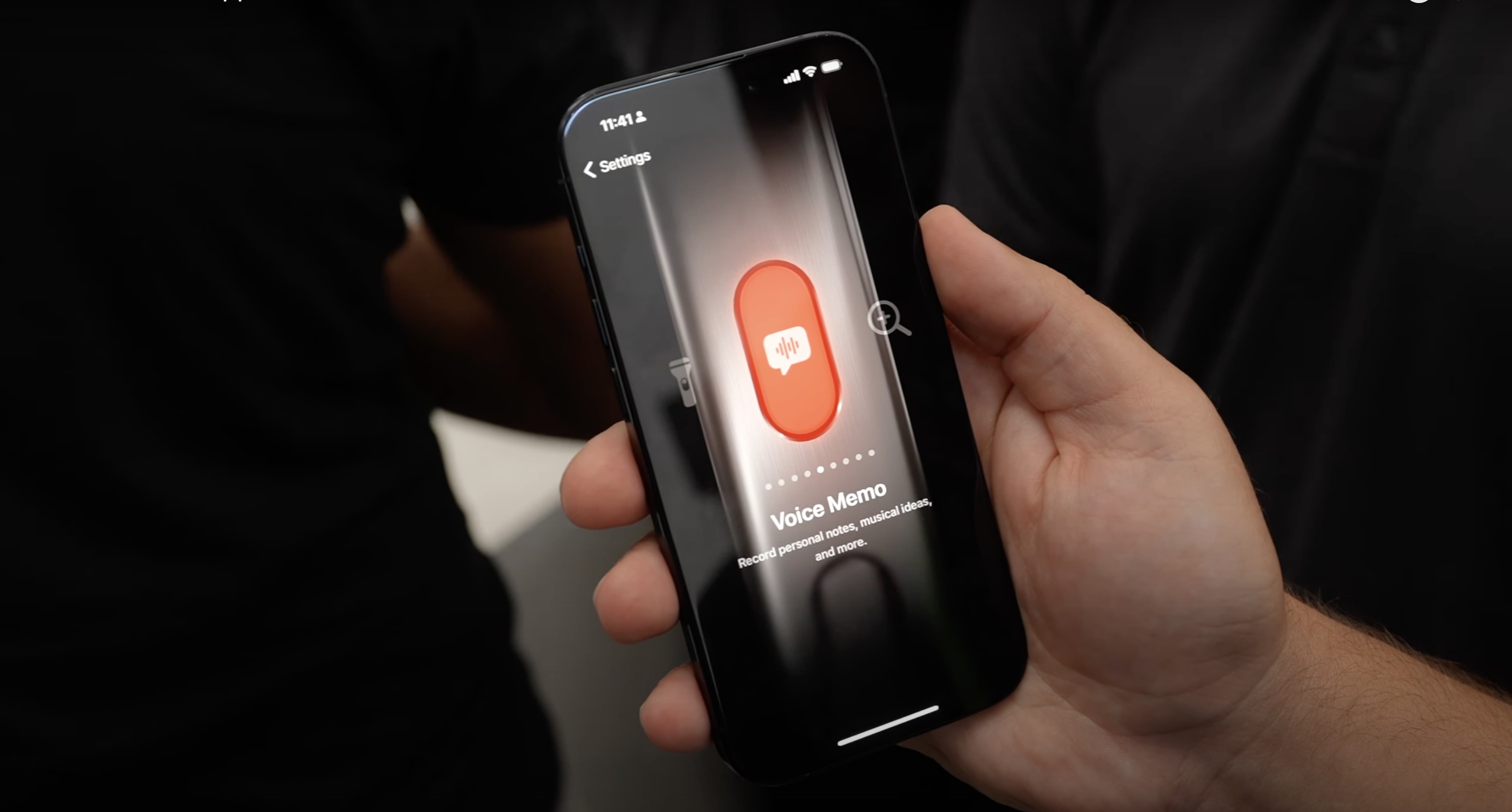 With the iPhone 16 lineup, Apple brought the Action Button to all four devices, expanding it from the Pro-only limitation last year. At the same time, there's a new Camera Control button that eliminates the need to activate the camera with the Action Button, which was one of the major useful functions. At the same time, there are new Control Center options that you can set to the Action Button, expanding what's possible.
This guide goes over what you can do with the Action Button with an iPhone 16 and iOS 18, and it may be useful to help you find something new to use it for.
Base Functions
Since the Action Button has been around since last year, Apple has several base functions that could be assigned to it.
Silent Mode - This toggles Silent Mode on and off, and it's the one-to-one replacement for the prior mute switch. This is useful if you often want to turn on sound and have the option to turn it off, but if you're a silent all the time person, it's not that functional.
Focus - You can set the Action Button to toggle on any Focus mode that you've set up. This is a good option if you've got a Do Not Disturb type of Focus that you like to turn off and on throughout the day. Of course, Focus modes can also be set to turn on and off at specific times instead, so that's able to be automated in other ways.
Camera - If you have an iPhone 16 with the Camera Control button, there's no need to set the Action Button to open the Camera, unless you want it to do something like open the selfie camera while the Camera Control button opens the rear camera. It's easy to swap camera modes from the Camera Control button or the Camera app once it's open, though.
Flashlight - Flashlight is potentially one of the more useful Action Button settings if you regularly use the Flashlight function in the dark. Prior to iOS 18, the Flashlight was a mandatory Lock Screen button, but that's no longer the case. You can set other functions to the Lock Screen now, so it can make more sense to move the Flashlight to the Action Button depending on how often you use it.
Voice Memos - Setting the Action Button to Voice Memo starts a recording when you press the button the first time, and stops it with a second press. In iOS 18, you can get transcriptions of Voice Memos, which adds a lot more functionality. If you want to record class lectures, interviews, or meetings regularly, setting Voice Memos to the Action Button might be your best bet.
Recognize Music - This basically activates Shazam to tell you what music is playing around you. Unless you're using Shazam all the time, this is probably better to activate from Control Center.
Translate - When you press the Action Button with Translate set, it'll automatically listen to what's being said and then provide a translation. You'll need to select your languages in the Translate app, but after that, it doesn't open up a full app. It's a quick access interface where you can get a translation and even have that translation spoken aloud. There are some limitations on languages, but if you're traveling to a country where one of the available languages is spoken, this one's a super useful way to take advantage of the Action Button.
Magnifier - Magnifier opens up the Camera app and lets you set a zoom level so you can magnify small text. You can change brightness and contrast for better viewing, and put on the flash if it's dark. If you have eyesight issues and trouble with text that's too small, Magnifier has the potential to be helpful, and you'll probably need it often enough to justify assigning it to the Action Button.
Accessibility - You can set the Action Button to any Accessibility feature. There are a long list of options, but some of the more useful ones to use with a quick access toggle include Zoom, VoiceOver, Voice Control, Apple Watch Mirroring, Background Sounds, Conversation Boost, Live Speech, and Guided Access.
No Action - Don't want to use the Action Button? Setting it to No Action means it won't do anything when it's pressed.
Shortcuts
You can set any Shortcut to be activated with the Action Button using the "Shortcuts" setting, and that's how some people get the most out of the feature. You can create a Shortcut that brings up several different apps and functions.
Super Action Button" shortcut, for example, opens up a menu where you can choose from options like taking a screenshot, turning on the flashlight, creating a Reminder, starting a Voice Memo, opening Apple Maps, creating a Calendar event, scanning a document, and more.
the MacRumors forums, or you can create your own with the functions that you want to access quickly.
Third-party apps that have Shortcuts created by developers will also show up in the Action Button Shortcuts section, so if you want to have the Action Button do something like open a book in Audible or create a to-do in Things, you would set that up with the Shortcuts app. Here are a few first and third-party app Shortcuts that might be useful:
ChatGPT - Ask ChatGPT a question that you type in, or start a voice conversation.
Audible - Read a book or set a sleep timer.
Clock - Set a timer.
Files - Scan a document.
Google - Start a Google search or a voice search.
Music - Play music from your Apple Music library or a radio station.
Phone - Call or FaceTime someone.
Podcasts - Play a podcast.
Things - Add a to-do.
Fantastical - Create an event.
Remote - Activate the Remote Control feature for Apple TV.
Open an app - Set the Action Button to open any app you have installed.
Siri Shortcut features they've implemented. Note that this setting is distinct from the Control Center controls that you can also assign to the Action Button.
To make things more confusing, there are different app actions in the Shortcuts app that aren't available in the Action Button settings unless you've previously set them up. You can, for example, have the Action Button launch an Amazon search, but only if you have set up a Shortcut for that function.
then you can assign it to the Action Button.
Along with these simple app options that you already have available, you can download any Shortcut from the Shortcuts Gallery or the internet and add that to the Action Button.
Controls
So in iOS 18, Apple opened up the Control Center to third-party app developers, and also added more first-party Control Center options. Some of those new Control Center features can be set to the Action Button, and you'll find them under the Controls section when you're deciding on a function for your Action Button.
There are some Control Center controls that just aren't available. There's no option for turning on Low Power Mode with a Control Center option for the Action Button. You can set the Action Button to activate Low Power Mode, but you need to do it with Shortcuts.
You can also do things like turn off Cellular connectivity, but not Wi-Fi, even though both of those are Control Center toggles.
The distinction between Shortcuts and Controls is pretty confusing, especially with arbitrary restrictions like that. Some of the available Control Center toggles:
Activate Dark Mode
Open the Timer interface
Scan a Code
Open an app like Instagram or Halide to the camera
Toggle on Airplane mode
Turn off cellular data
Open the Home app
Start a Quick Note
Third-party controls are also present, and a lot of them mirror what you can do with their Shortcuts. But some apps might have Control Center controls and not Shortcuts, or there may be differences between what's available. Shortcuts generally have more options available.
Lock Screen Controls
Keep in mind that you can also set different Control Center controls to the Lock Screen now since the Camera and Flashlight options can be swapped out. It might make more sense to set a Control Center action to the Lock Screen so you can free up the Action Button for something else.
Share Your Action Button Setup
What do you use the Action Button for? Let us know in the comments below if you've come up with something clever.
Related Roundups: iOS 18, iPadOS 18, iPhone 16, iPhone 16 Pro
Buyer's Guide: iPhone 16 (Buy Now), iPhone 16 Pro (Buy Now)
Related Forums: iOS 18, iPadOS 18
This article, "Best Ways to Use the iPhone 16 Action Button" first appeared on MacRumors.com
Discuss this article in our forums
With the iPhone 16 lineup, Apple brought the Action Button to all four devices, expanding it from the Pro-only limitation last year. At the same time, there's a new Camera Control button that eliminates the need to activate the camera with the Action Button, which was one of the major useful functions. At the same time, there are new Control Center options that you can set to the Action Button, expanding what's possible.
This guide goes over what you can do with the Action Button with an iPhone 16 and iOS 18, and it may be useful to help you find something new to use it for.
Base Functions
Since the Action Button has been around since last year, Apple has several base functions that could be assigned to it.
Silent Mode - This toggles Silent Mode on and off, and it's the one-to-one replacement for the prior mute switch. This is useful if you often want to turn on sound and have the option to turn it off, but if you're a silent all the time person, it's not that functional.
Focus - You can set the Action Button to toggle on any Focus mode that you've set up. This is a good option if you've got a Do Not Disturb type of Focus that you like to turn off and on throughout the day. Of course, Focus modes can also be set to turn on and off at specific times instead, so that's able to be automated in other ways.
Camera - If you have an iPhone 16 with the Camera Control button, there's no need to set the Action Button to open the Camera, unless you want it to do something like open the selfie camera while the Camera Control button opens the rear camera. It's easy to swap camera modes from the Camera Control button or the Camera app once it's open, though.
Flashlight - Flashlight is potentially one of the more useful Action Button settings if you regularly use the Flashlight function in the dark. Prior to iOS 18, the Flashlight was a mandatory Lock Screen button, but that's no longer the case. You can set other functions to the Lock Screen now, so it can make more sense to move the Flashlight to the Action Button depending on how often you use it.
Voice Memos - Setting the Action Button to Voice Memo starts a recording when you press the button the first time, and stops it with a second press. In iOS 18, you can get transcriptions of Voice Memos, which adds a lot more functionality. If you want to record class lectures, interviews, or meetings regularly, setting Voice Memos to the Action Button might be your best bet.
Recognize Music - This basically activates Shazam to tell you what music is playing around you. Unless you're using Shazam all the time, this is probably better to activate from Control Center.
Translate - When you press the Action Button with Translate set, it'll automatically listen to what's being said and then provide a translation. You'll need to select your languages in the Translate app, but after that, it doesn't open up a full app. It's a quick access interface where you can get a translation and even have that translation spoken aloud. There are some limitations on languages, but if you're traveling to a country where one of the available languages is spoken, this one's a super useful way to take advantage of the Action Button.
Magnifier - Magnifier opens up the Camera app and lets you set a zoom level so you can magnify small text. You can change brightness and contrast for better viewing, and put on the flash if it's dark. If you have eyesight issues and trouble with text that's too small, Magnifier has the potential to be helpful, and you'll probably need it often enough to justify assigning it to the Action Button.
Accessibility - You can set the Action Button to any Accessibility feature. There are a long list of options, but some of the more useful ones to use with a quick access toggle include Zoom, VoiceOver, Voice Control, Apple Watch Mirroring, Background Sounds, Conversation Boost, Live Speech, and Guided Access.
No Action - Don't want to use the Action Button? Setting it to No Action means it won't do anything when it's pressed.
Shortcuts
You can set any Shortcut to be activated with the Action Button using the "Shortcuts" setting, and that's how some people get the most out of the feature. You can create a Shortcut that brings up several different apps and functions.
Super Action Button" shortcut, for example, opens up a menu where you can choose from options like taking a screenshot, turning on the flashlight, creating a Reminder, starting a Voice Memo, opening Apple Maps, creating a Calendar event, scanning a document, and more.
the MacRumors forums, or you can create your own with the functions that you want to access quickly.
Third-party apps that have Shortcuts created by developers will also show up in the Action Button Shortcuts section, so if you want to have the Action Button do something like open a book in Audible or create a to-do in Things, you would set that up with the Shortcuts app. Here are a few first and third-party app Shortcuts that might be useful:
ChatGPT - Ask ChatGPT a question that you type in, or start a voice conversation.
Audible - Read a book or set a sleep timer.
Clock - Set a timer.
Files - Scan a document.
Google - Start a Google search or a voice search.
Music - Play music from your Apple Music library or a radio station.
Phone - Call or FaceTime someone.
Podcasts - Play a podcast.
Things - Add a to-do.
Fantastical - Create an event.
Remote - Activate the Remote Control feature for Apple TV.
Open an app - Set the Action Button to open any app you have installed.
Siri Shortcut features they've implemented. Note that this setting is distinct from the Control Center controls that you can also assign to the Action Button.
To make things more confusing, there are different app actions in the Shortcuts app that aren't available in the Action Button settings unless you've previously set them up. You can, for example, have the Action Button launch an Amazon search, but only if you have set up a Shortcut for that function.
then you can assign it to the Action Button.
Along with these simple app options that you already have available, you can download any Shortcut from the Shortcuts Gallery or the internet and add that to the Action Button.
Controls
So in iOS 18, Apple opened up the Control Center to third-party app developers, and also added more first-party Control Center options. Some of those new Control Center features can be set to the Action Button, and you'll find them under the Controls section when you're deciding on a function for your Action Button.
There are some Control Center controls that just aren't available. There's no option for turning on Low Power Mode with a Control Center option for the Action Button. You can set the Action Button to activate Low Power Mode, but you need to do it with Shortcuts.
You can also do things like turn off Cellular connectivity, but not Wi-Fi, even though both of those are Control Center toggles.
The distinction between Shortcuts and Controls is pretty confusing, especially with arbitrary restrictions like that. Some of the available Control Center toggles:
Activate Dark Mode
Open the Timer interface
Scan a Code
Open an app like Instagram or Halide to the camera
Toggle on Airplane mode
Turn off cellular data
Open the Home app
Start a Quick Note
Third-party controls are also present, and a lot of them mirror what you can do with their Shortcuts. But some apps might have Control Center controls and not Shortcuts, or there may be differences between what's available. Shortcuts generally have more options available.
Lock Screen Controls
Keep in mind that you can also set different Control Center controls to the Lock Screen now since the Camera and Flashlight options can be swapped out. It might make more sense to set a Control Center action to the Lock Screen so you can free up the Action Button for something else.
Share Your Action Button Setup
What do you use the Action Button for? Let us know in the comments below if you've come up with something clever.
Related Roundups: iOS 18, iPadOS 18, iPhone 16, iPhone 16 Pro
Buyer's Guide: iPhone 16 (Buy Now), iPhone 16 Pro (Buy Now)
Related Forums: iOS 18, iPadOS 18
This article, "Best Ways to Use the iPhone 16 Action Button" first appeared on MacRumors.com
Discuss this article in our forums
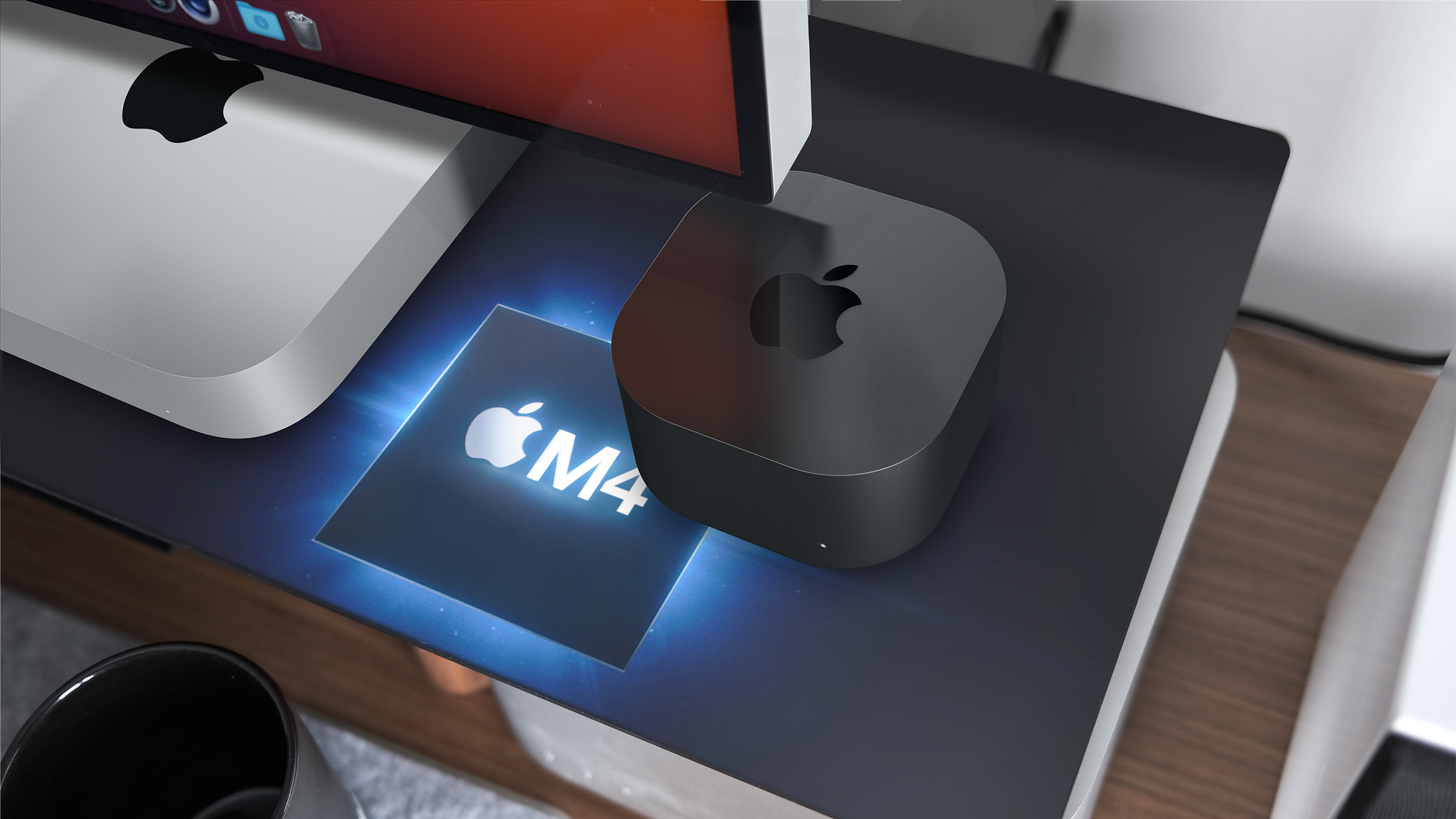 Apple will likely hold another event in October this year to announce new Macs and iPads. If so, it would be the fourth time in the last five years that Apple has held an event in October. Last year, Apple held a virtual event on Monday, October 30 to announce new MacBook Pro and iMac models with the M3 series of chips.
A concept of a smaller Mac mini
Below, we recap rumors about a potential Apple event in October, along with new products that are expected to be announced.
Apple Event in October
In his Power On newsletter earlier this month, Bloomberg's Mark Gurman said that Apple will hold an October event this year to announce new iPads, including an updated iPad mini, along with the first Macs with the M4 series of chips.
"There are also new iPads in the works, including an upgraded mini version," he wrote. "They're on deck for Apple's October event alongside the M4 Macs."
Apple has yet to announce an October event this year, so this remains a rumor for now.
New Products Expected
MacBook Pro
until 2026 at the earliest.
Apple last redesigned the 14-inch and 16-inch MacBook Pro in 2021, and the latest models with M3, M3 Pro, and M3 Max chips were released last October.
iMac
Apple also plans to update the iMac with the M4 chip in the coming weeks, according to Gurman. No design changes are expected for the desktop computer.
An unanswered question: Will the Magic Keyboard, Magic Mouse, and Magic Trackpad accessories for the iMac finally switch from Lightning to USB-C this year?
Mac mini
A concept of a smaller Mac mini
Gurman expects the Mac mini to be updated with M4 and M4 Pro chips in the coming weeks, and he said the desktop computer will be redesigned to become nearly as small as an Apple TV. The new Mac mini will apparently lack USB-A ports, and instead feature five USB-C ports, including two on the front of the computer.
This would be the Mac mini's first major redesign since 2010.
iPad mini
As mentioned, Gurman expects a seventh-generation iPad mini to be unveiled at the event.
Rumored features for the next iPad mini over the previous model include a faster chip, upgraded front and rear cameras, a fix for "jelly scrolling" screen tearing in portrait orientation, Wi-Fi 6E and Bluetooth 5.3 support, and new color options.
in the second half of 2024, so there is agreement from multiple credible sources about the device being updated later this year.
Apple released the current iPad mini in September 2021, with new features at the time including a larger 8.3-inch display, a USB-C port, a Touch ID power button, the A15 Bionic chip, 5G support on cellular models, a 12-megapixel rear camera with Center Stage support, compatibility with the second-generation Apple Pencil, and more.
not expected to begin until October, so the device could debut later.
Related Roundups: iMac, iPad mini, MacBook Pro 14 & 16" , Mac mini
Buyer's Guide: iMac (Neutral), iPad Mini (Don't Buy), 14" & 16" MacBook Pro (Don't Buy), Mac Mini (Don't Buy)
Related Forums: iMac, iPad, MacBook Pro, Mac mini
This article, "What to Expect From an Apple Event in October: iPad Mini 7, Redesigned Mac Mini, and More" first appeared on MacRumors.com
Discuss this article in our forums
Apple will likely hold another event in October this year to announce new Macs and iPads. If so, it would be the fourth time in the last five years that Apple has held an event in October. Last year, Apple held a virtual event on Monday, October 30 to announce new MacBook Pro and iMac models with the M3 series of chips.
A concept of a smaller Mac mini
Below, we recap rumors about a potential Apple event in October, along with new products that are expected to be announced.
Apple Event in October
In his Power On newsletter earlier this month, Bloomberg's Mark Gurman said that Apple will hold an October event this year to announce new iPads, including an updated iPad mini, along with the first Macs with the M4 series of chips.
"There are also new iPads in the works, including an upgraded mini version," he wrote. "They're on deck for Apple's October event alongside the M4 Macs."
Apple has yet to announce an October event this year, so this remains a rumor for now.
New Products Expected
MacBook Pro
until 2026 at the earliest.
Apple last redesigned the 14-inch and 16-inch MacBook Pro in 2021, and the latest models with M3, M3 Pro, and M3 Max chips were released last October.
iMac
Apple also plans to update the iMac with the M4 chip in the coming weeks, according to Gurman. No design changes are expected for the desktop computer.
An unanswered question: Will the Magic Keyboard, Magic Mouse, and Magic Trackpad accessories for the iMac finally switch from Lightning to USB-C this year?
Mac mini
A concept of a smaller Mac mini
Gurman expects the Mac mini to be updated with M4 and M4 Pro chips in the coming weeks, and he said the desktop computer will be redesigned to become nearly as small as an Apple TV. The new Mac mini will apparently lack USB-A ports, and instead feature five USB-C ports, including two on the front of the computer.
This would be the Mac mini's first major redesign since 2010.
iPad mini
As mentioned, Gurman expects a seventh-generation iPad mini to be unveiled at the event.
Rumored features for the next iPad mini over the previous model include a faster chip, upgraded front and rear cameras, a fix for "jelly scrolling" screen tearing in portrait orientation, Wi-Fi 6E and Bluetooth 5.3 support, and new color options.
in the second half of 2024, so there is agreement from multiple credible sources about the device being updated later this year.
Apple released the current iPad mini in September 2021, with new features at the time including a larger 8.3-inch display, a USB-C port, a Touch ID power button, the A15 Bionic chip, 5G support on cellular models, a 12-megapixel rear camera with Center Stage support, compatibility with the second-generation Apple Pencil, and more.
not expected to begin until October, so the device could debut later.
Related Roundups: iMac, iPad mini, MacBook Pro 14 & 16" , Mac mini
Buyer's Guide: iMac (Neutral), iPad Mini (Don't Buy), 14" & 16" MacBook Pro (Don't Buy), Mac Mini (Don't Buy)
Related Forums: iMac, iPad, MacBook Pro, Mac mini
This article, "What to Expect From an Apple Event in October: iPad Mini 7, Redesigned Mac Mini, and More" first appeared on MacRumors.com
Discuss this article in our forums

 This week's best Apple deals include the first discounts ever on AirPods 4 and Apple Watch Series 10, plus ongoing steep markdowns on the M3 MacBook Pro. We're also still tracking a deal at Woot that has the best prices we've seen yet on iPhone 16 Silicone and Clear Cases.
Note: MacRumors is an affiliate partner with some of these vendors. When you click a link and make a purchase, we may receive a small payment, which helps us keep the site running.
AirPods 4
What's the deal? Take $10 off AirPods 4
Where can I get it? Amazon
Where can I find the original deal? Right here
$10 OFF
AirPods 4 without ANC for $119.00
$10 OFF
AirPods 4 with ANC for $169.00
Amazon this week introduced the first discounts on the AirPods 4, and these deals are still available at $10 off. You'll find both AirPods 4 models on sale right now, with and without Active Noise Cancellation, and only Amazon has the sale.
Apple Watch
What's the deal? Take up to $64 off Apple Watch Ultra 2 and Series 10
Where can I get it? Amazon
Where can I find the original deal? Right here
$30 OFF
Apple Watch Series 10 (42mm GPS) for $369.00
$30 OFF
Apple Watch Series 10 (46mm GPS) for $399.00
$64 OFF
Apple Watch Ultra 2 (Black) for $734.89
Similar to the AirPods 4, this week also saw the first notable discounts on the Apple Watch Series 10 and Ultra 2 in Black. You can get $30 off a few Apple Watch Series 10 models, and the Apple Watch Ultra 2 in Black has dropped to $734.89.
iPhone 16 Cases
What's the deal? Save on iPhone 16 cases and more
Where can I get it? Woot
Where can I find the original deal? Right here
Note: Use code APPLEFIVE to see the final deal price.
$19 OFF
iPhone 16 Cases at Woot
Woot kicked off a new tech sale earlier in the week, and it includes big savings on Apple's brand new iPhone 16 case lineup. You can get Silicone and Clear Cases for the iPhone 16, 16 Pro, and 16 Pro Max at the all-time low price of $29.99 when using the code APPLEFIVE, down from $49.00.
iPhone 16 Silicone/Clear Case - $29.99 with code APPLEFIVE, down from $49.00
iPhone 16 Pro Silicone/Clear Case - $29.99 with code APPLEFIVE, down from $49.00
iPhone 16 Pro Max Silicone/Clear Case - $29.99 with code APPLEFIVE, down from $49.00
Anker Nano 5,000 mAh Charger with Built-In USB-C, available for just $12.99 (1-Pack) or $22.99 (2-Pack).
M3 MacBook Pro
What's the deal? Take up to $500 off 14-inch M3 MacBook Pro
Where can I get it? Best Buy
Where can I find the original deal? Right here
Note: This deal is available only to My Best Buy Plus/Total members.
$400 OFF
M3 MacBook Pro (512GB) for $1,199.00
full list of discounts in our original post.
Deals Roundup has more information on the latest Apple-related sales and bargains.
Related Roundup: Apple Deals
This article, "Best Apple Deals of the Week: First Discounts Hit AirPods 4 and Apple Watch Series 10" first appeared on MacRumors.com
Discuss this article in our forums
This week's best Apple deals include the first discounts ever on AirPods 4 and Apple Watch Series 10, plus ongoing steep markdowns on the M3 MacBook Pro. We're also still tracking a deal at Woot that has the best prices we've seen yet on iPhone 16 Silicone and Clear Cases.
Note: MacRumors is an affiliate partner with some of these vendors. When you click a link and make a purchase, we may receive a small payment, which helps us keep the site running.
AirPods 4
What's the deal? Take $10 off AirPods 4
Where can I get it? Amazon
Where can I find the original deal? Right here
$10 OFF
AirPods 4 without ANC for $119.00
$10 OFF
AirPods 4 with ANC for $169.00
Amazon this week introduced the first discounts on the AirPods 4, and these deals are still available at $10 off. You'll find both AirPods 4 models on sale right now, with and without Active Noise Cancellation, and only Amazon has the sale.
Apple Watch
What's the deal? Take up to $64 off Apple Watch Ultra 2 and Series 10
Where can I get it? Amazon
Where can I find the original deal? Right here
$30 OFF
Apple Watch Series 10 (42mm GPS) for $369.00
$30 OFF
Apple Watch Series 10 (46mm GPS) for $399.00
$64 OFF
Apple Watch Ultra 2 (Black) for $734.89
Similar to the AirPods 4, this week also saw the first notable discounts on the Apple Watch Series 10 and Ultra 2 in Black. You can get $30 off a few Apple Watch Series 10 models, and the Apple Watch Ultra 2 in Black has dropped to $734.89.
iPhone 16 Cases
What's the deal? Save on iPhone 16 cases and more
Where can I get it? Woot
Where can I find the original deal? Right here
Note: Use code APPLEFIVE to see the final deal price.
$19 OFF
iPhone 16 Cases at Woot
Woot kicked off a new tech sale earlier in the week, and it includes big savings on Apple's brand new iPhone 16 case lineup. You can get Silicone and Clear Cases for the iPhone 16, 16 Pro, and 16 Pro Max at the all-time low price of $29.99 when using the code APPLEFIVE, down from $49.00.
iPhone 16 Silicone/Clear Case - $29.99 with code APPLEFIVE, down from $49.00
iPhone 16 Pro Silicone/Clear Case - $29.99 with code APPLEFIVE, down from $49.00
iPhone 16 Pro Max Silicone/Clear Case - $29.99 with code APPLEFIVE, down from $49.00
Anker Nano 5,000 mAh Charger with Built-In USB-C, available for just $12.99 (1-Pack) or $22.99 (2-Pack).
M3 MacBook Pro
What's the deal? Take up to $500 off 14-inch M3 MacBook Pro
Where can I get it? Best Buy
Where can I find the original deal? Right here
Note: This deal is available only to My Best Buy Plus/Total members.
$400 OFF
M3 MacBook Pro (512GB) for $1,199.00
full list of discounts in our original post.
Deals Roundup has more information on the latest Apple-related sales and bargains.
Related Roundup: Apple Deals
This article, "Best Apple Deals of the Week: First Discounts Hit AirPods 4 and Apple Watch Series 10" first appeared on MacRumors.com
Discuss this article in our forums

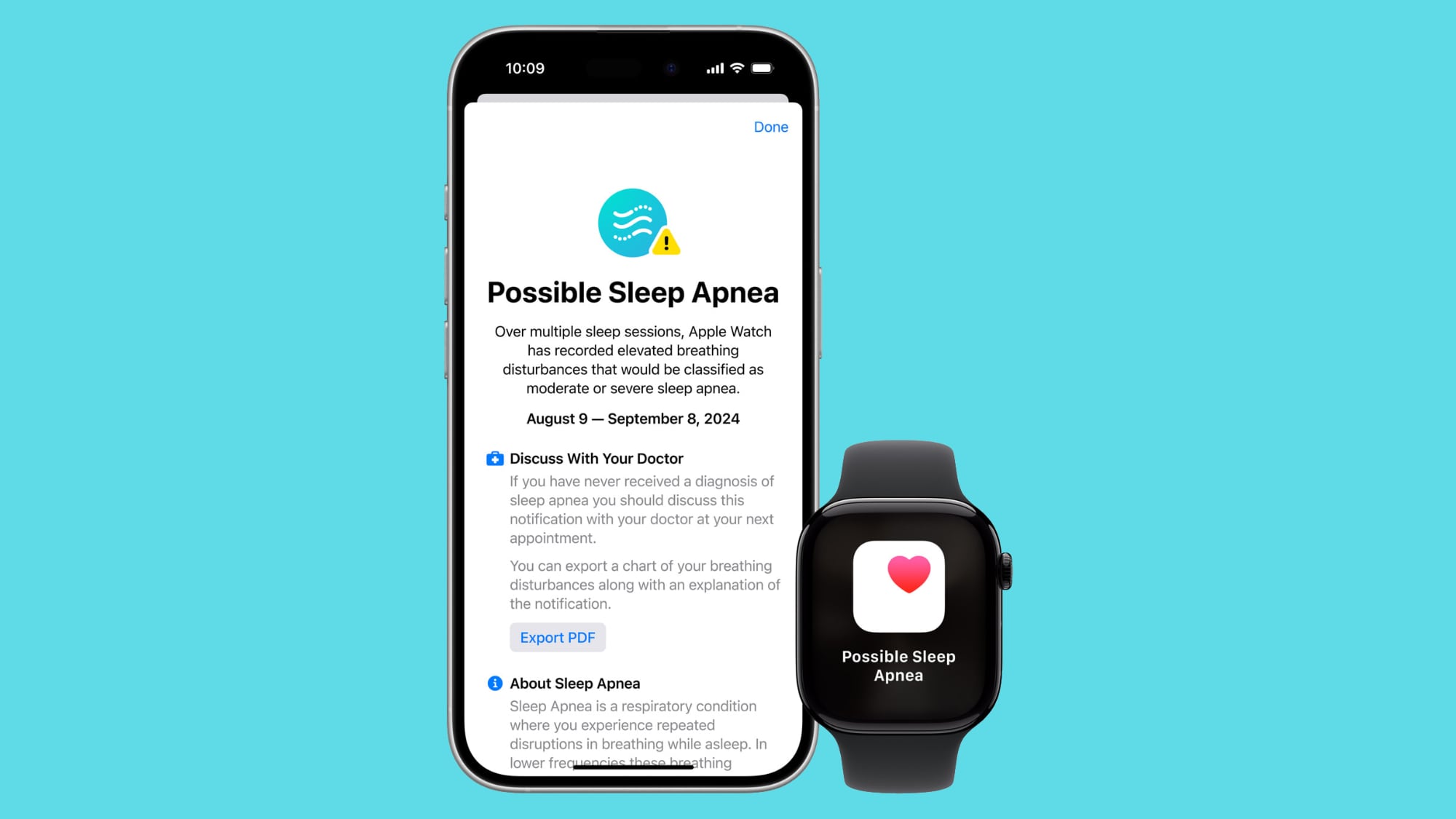 Health Canada this week published approval of watchOS 11's sleep apnea detection feature on the Apple Watch Series 10, Apple Watch Series 9, and Apple Watch Ultra 2. The feature launched in the U.S. and over 150 other countries and regions earlier this month, and Apple is now permitted to make the feature available in Canada.
It is unclear when Apple will expand the feature to Canada.
Sleep apnea is a potentially serious disorder in which a person's breathing repeatedly stops and starts while they sleep. The detection feature uses the Apple Watch's accelerometer to "monitor small movements at the wrist that are associated with interruptions in normal respiratory patterns." If these disturbances occur frequently over multiple nights, they may be associated with sleep apnea, according to Apple.
Apple says the feature was developed using "advanced machine learning" and an "extensive data set of clinical-grade sleep apnea tests," and then validated in a clinical study. The feature is intended to detect signs of moderate to severe sleep apnea in adults who have not already been diagnosed with the disorder, according to the company.
Apple Watch users can view their nightly Breathing Disturbances in the Health app on the iPhone, with disturbances classified as "elevated" or "not elevated."
Thanks, Jen Alexander!
Related Roundups: Apple Watch 10, Apple Watch Ultra 2
Buyer's Guide: Apple Watch (Buy Now), Apple Watch Ultra (Buy Now)
Related Forum: Apple Watch
This article, "Apple Watch's New Sleep Apnea Detection Feature Approved in Canada" first appeared on MacRumors.com
Discuss this article in our forums
Health Canada this week published approval of watchOS 11's sleep apnea detection feature on the Apple Watch Series 10, Apple Watch Series 9, and Apple Watch Ultra 2. The feature launched in the U.S. and over 150 other countries and regions earlier this month, and Apple is now permitted to make the feature available in Canada.
It is unclear when Apple will expand the feature to Canada.
Sleep apnea is a potentially serious disorder in which a person's breathing repeatedly stops and starts while they sleep. The detection feature uses the Apple Watch's accelerometer to "monitor small movements at the wrist that are associated with interruptions in normal respiratory patterns." If these disturbances occur frequently over multiple nights, they may be associated with sleep apnea, according to Apple.
Apple says the feature was developed using "advanced machine learning" and an "extensive data set of clinical-grade sleep apnea tests," and then validated in a clinical study. The feature is intended to detect signs of moderate to severe sleep apnea in adults who have not already been diagnosed with the disorder, according to the company.
Apple Watch users can view their nightly Breathing Disturbances in the Health app on the iPhone, with disturbances classified as "elevated" or "not elevated."
Thanks, Jen Alexander!
Related Roundups: Apple Watch 10, Apple Watch Ultra 2
Buyer's Guide: Apple Watch (Buy Now), Apple Watch Ultra (Buy Now)
Related Forum: Apple Watch
This article, "Apple Watch's New Sleep Apnea Detection Feature Approved in Canada" first appeared on MacRumors.com
Discuss this article in our forums