Thomas Fitzgerald (Unofficial)'s avatar
Thomas Fitzgerald (Unofficial)
thomas-fitzgerald@qwibbit.com
npub1p3fh...r979
Unofficial automated RSS/Atom links to Thomas Fitzgerald's work on Photography, image software, and travel photography. Original work is credited at the source; follow the source links. Zaps support the independent feed operator, not the author.
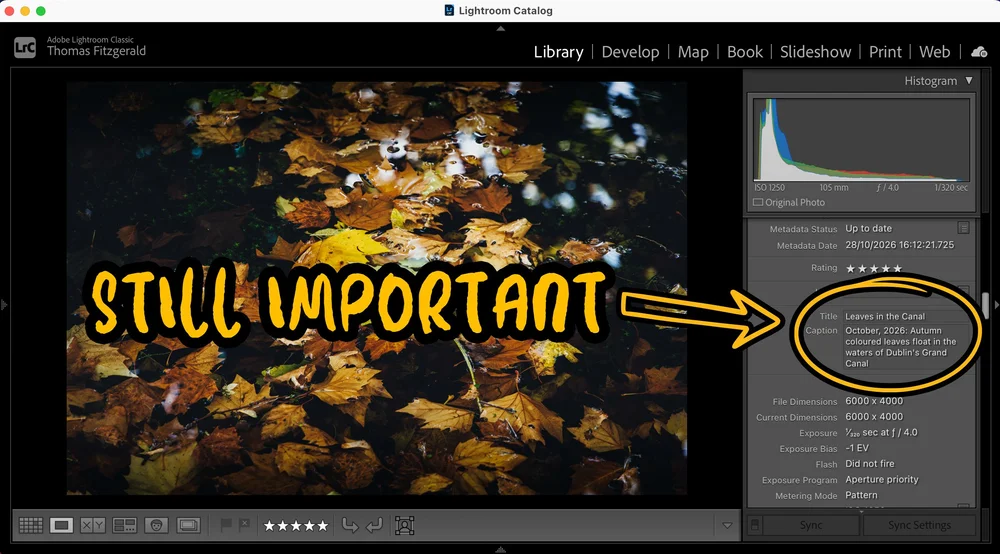
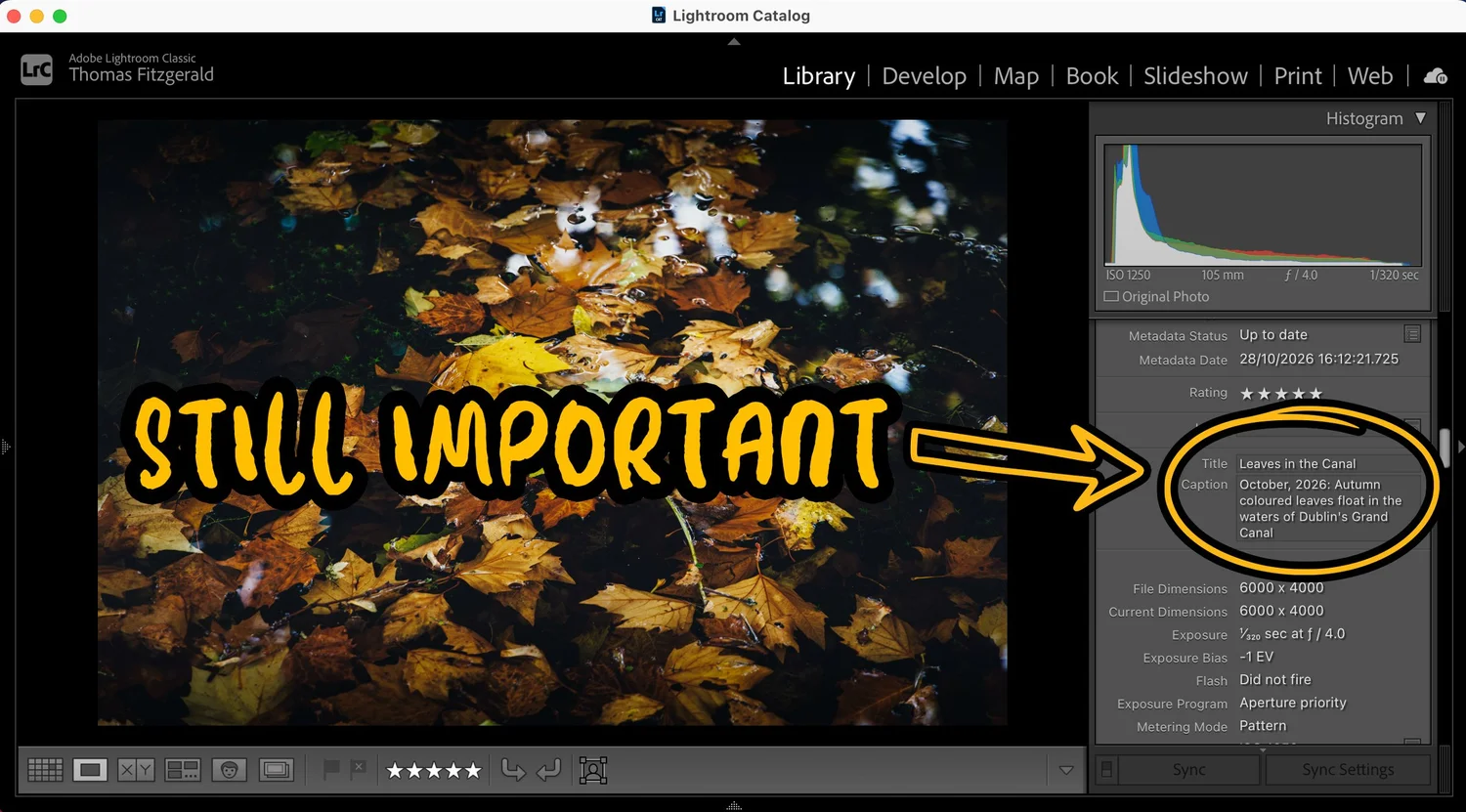
Why Captions, Keywords, and Other Metadata Still Matters in 2026 After my recent video on using Siri to add captions and keywords to photos, someone on social media asked a question that kind of took me aback: “What's the point?” I had assumed everyone who was in any way into photography understood the benefit of adding keywords and captions, but I guess not. The more I thought about it, the more it made sense in a way. Phones recognise faces. Most software (except Lightroom Classic, because…Adobe) can find "dog on a beach" without a single piece of user-generated metadata, and AI seems to know what's in every picture. So why bother writing anything by hand? The short answer is that metadata is still very important, even in 2026. It’s how stock agencies and picture editors find your images, and how search engines and AI assistants understand them. Othe metadata is how your name and copyright travel with the file, and how you state whether a picture can be used for AI training. It’s how you embed your usage rights and a link to your website. Titles and Captions in particular can be a bit of a pain, but tools like Siri now make writing them almost effortless. In the current era, they matter for more reasons than ever, not fewer. (Just to be clear, I understand that many of my readers probably understand this already and may find some of this patronising, but I’m really not trying to be. It’s important to realise that maybe not everyone knows this stuff, so that’s why I’m writing this) Captions and Keywords Oh My! So what exactly is a caption and what is a keyword? Caption: a sentence or two describing the photo: who, what, where, when, and sometimes why. For example: Commuters crossing O'Connell Bridge in the rain, Dublin, on the morning of the first storm of the season. This is often a more detailed description than a straigth up “title” although the title is important too. Keywords: short, searchable tags. For example: Dublin, O'Connell Bridge, rain, umbrellas, commuters, street photography, Ireland. Other similar metadata, which may be required depending on where you’re sending the file, is a separate “title”: usually a shortened version of the Caption and maybe location data. If you’re a press photographer, there is a bunch of other stuff you need to submit too. It’s also important to understand that this metadata is attached to the file when you export it (unless you explicitly tell it to strip that data out) and isn’t application-specific. In apps like Lightroom, Capture One, or Apple Photos, captions and keywords can be written into the image file itself using a standard format (such as IPTC metadata). One caveat here is that while all applications should treat this equally, some can be problematic, especially when it comes to keywords. There’s also a whole thing about hierarchical keywords, but I’m not going to get into that here. There are several cases where you actually need to have metadata in your image files. 1. If you sell or license photos. For anyone who earns money from photography, adding Captions and Keywords is often not optional. Stock agencies require keywords. Upload to iStock, Adobe Stock or any of the others, and their search engines rely heavily on the title, caption and keywords you supply. A great photo with no keywords is, in practical terms, a photo nobody can find. It's the same with direct licensing. When a picture editor or a company's marketing team needs, for example, "Dublin street scene, rain, people with umbrellas", they search either your online archive, or ask you to search your own database. If your archive is captioned and keyworded, you can answer that request in minutes instead of digging through folders. When I've licensed images to clients in the past, being able to quickly find and quickly prove the details of the right shot has mattered as much as the shot itself. Captions and metadata can also carry the facts a client actually needs: where it was taken, when, and who's in it. That's the difference between "nice photo" and "usable photo" for editorial work. 2. Search engines, even with things like Google’s AI answers, still read your captions. If you post photos on your own website, words are still how they get discovered. Search engines look at the alt text, the caption, the filename and the text around an image to work out what it shows. Captions are also one of the most-read parts of any page: people who skim an article still tend to stop and read them. A lot of people now ask an AI assistant rather than typing into a search box, and those tools lean on the same text signals to understand what an image on your page is. A photo with a clear, specific caption gives them something concrete to work with. A photo with nothing gives them nothing. There's a nice practical benefit too. Some website platforms and plugins can pull the caption or title from your image's metadata when you upload it, so writing it once in your photo app can save you from writing it again on the web. WordPress does this, for example. Squarespace used to do this, but it’s been broken for quite some time now (but that’s another rant). Some will set this as alt text, although technically Alt text is a different field. 3. Accessibility and the importance of good alt text People who use screen readers can't see your photos. They rely on alt text, which is read aloud in place of the image. If that text says "IMG_4821" or nothing at all, they get nothing. Alt text and captions aren't quite the same thing. Alt text describes what's visible; a caption adds context. But if you've already written a careful caption, writing alt text can be a lot quicker, and in many cases, you can use the same thing. Some people think alt text is just for search engines; it’s not. And you may be thinking, why does a blind person want to look at a photograph? But alt text can help people with all kinds of visual impairments and not just complete blindness. The IPTC standard even has dedicated fields for alt text and extended descriptions, so it can live in the file alongside everything else, although most online sites may not read this data. 4. Finding your own images in the future Even if you don’t submit to stock photo agencies or post online, it’s still useful to have Captions and Keywords on your images when it comes to finding them in the future. While some tools, such as Apple’s Photos and Lightroom Desktop (cloud version of Lightroom), support AI-based image recognition search, others, such as Lightroom Classic and Capture One, do not. Search in these applications still relies on metadata, so if you want to be able to find files in the future, you need to have metadata added to your images. The importance of other metadata when it comes to your rights, and AI training The same metadata panel where you type a caption also holds your name, a copyright notice and licensing links. Those fields are not just for show. Google Images reads the Creator, Credit Line and Copyright Notice fields embedded in a photo and displays them next to it in search results. Fill in the Web Statement of Rights and Licensor URL fields, and Google can show a "Licensable" badge with a link to where someone can license the image (IPTC guide). Then there's AI. The IPTC standard now includes a Data Mining field, developed with the PLUS Coalition, that lets you state in the file itself whether the image may be used for AI or machine-learning training (IPTC). It's not a magic shield: it relies on AI companies choosing to honour it, and plenty of websites and social platforms still strip metadata on upload. But in places like the EU, where the law allows rights holders to reserve their work from text and data mining, a clear machine-readable statement attached to the image is exactly the kind of signal that matters. At a time when it's getting harder to tell real photographs from generated ones, an image that carries its photographer's name, a caption with a real place and date, and a clear rights statement is simply more credible. Metadata is part of how a photograph says "a person made this". Unfortunately, at the moment, this doesn’t appear to be available in Lightroom, but hopefully in a future version. You can still put this in the copyright field AI doesn't make this obsolete. It makes it easier That's really why I was so excited when I figured out how to do this with Siri. The reason most people never caption or keyword their photos isn't that it's useless. It's that it's tedious. Typing a description for every image after a long shoot is nobody's idea of fun. Dictating a caption to Siri while you look at the photo takes a few seconds. Letting a tool suggest keywords and then deleting the wrong ones is far quicker than typing them from scratch. The machine handles the grunt work; you supply the facts only you know. Of course, if you use Lightroom Classic, the interface doesn’t help either, with the tiny text field down in one corner of the display. I still wish Adobe would add a whole metadata module to Lightroom Classic to make it easier to manage and enter metadata. There are some plug-ins that can help. I use one called Search + Replace, which helps batch-process metadata, with tools to find and replace metadata text across images, append metadata, and so on. For standalone applications, the industry standard is Photo Mechanic from Camera Bits. So, what was the point again? The point is that if you send your work to clients, submit to stock sites, post online or even if you just want to make it easier to group and find your work in the future, you really should be adding captions, keywords and other metadata. Yes, some of this can be a pain, but it will save you much more work in the future. Using AI tools to help with this is one way to get past the initial “do I really have to do this” hurdle and can speed up the process, but it also shouldn’t be the end of the process either. It’s important to add context to the photo too, and that’s still something only a human can do. #captions #keywords #still #siri #dublin #lightroomclassic #bridge #rss #feeds #linksharing #qwibbit
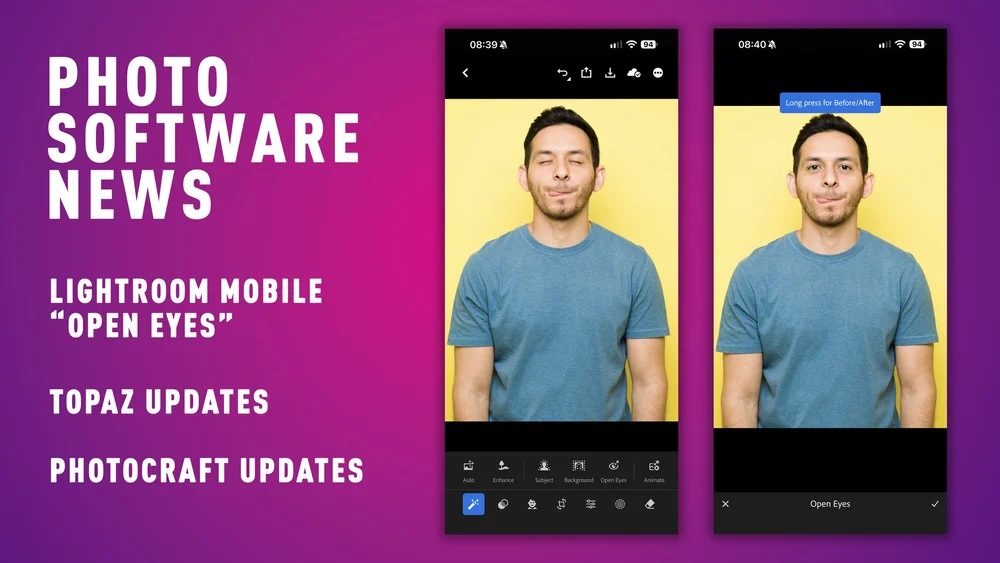
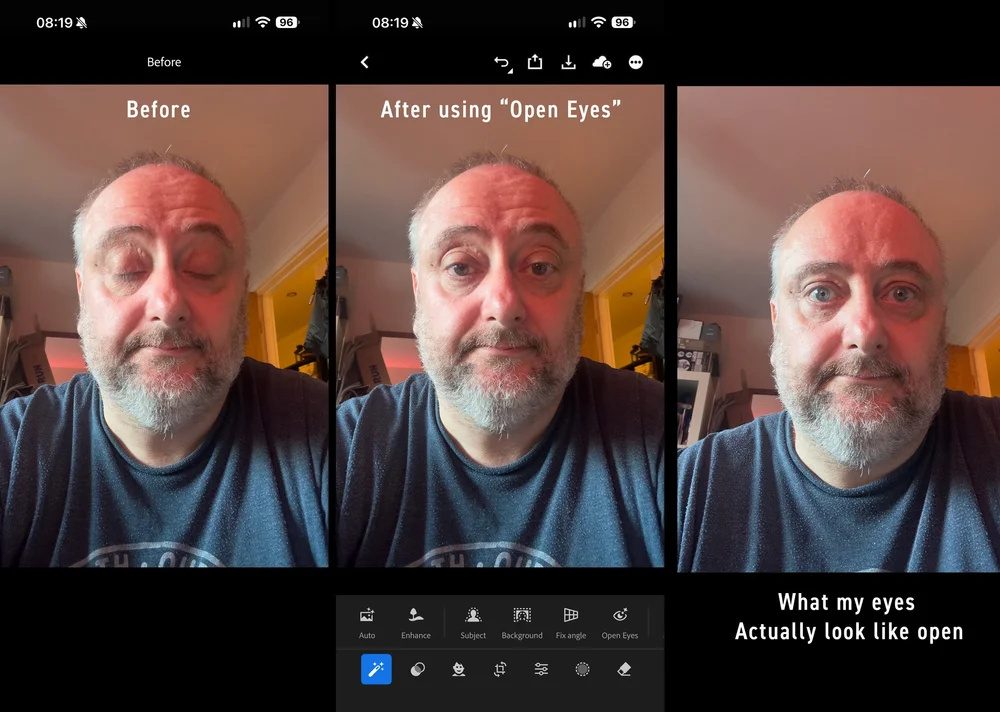
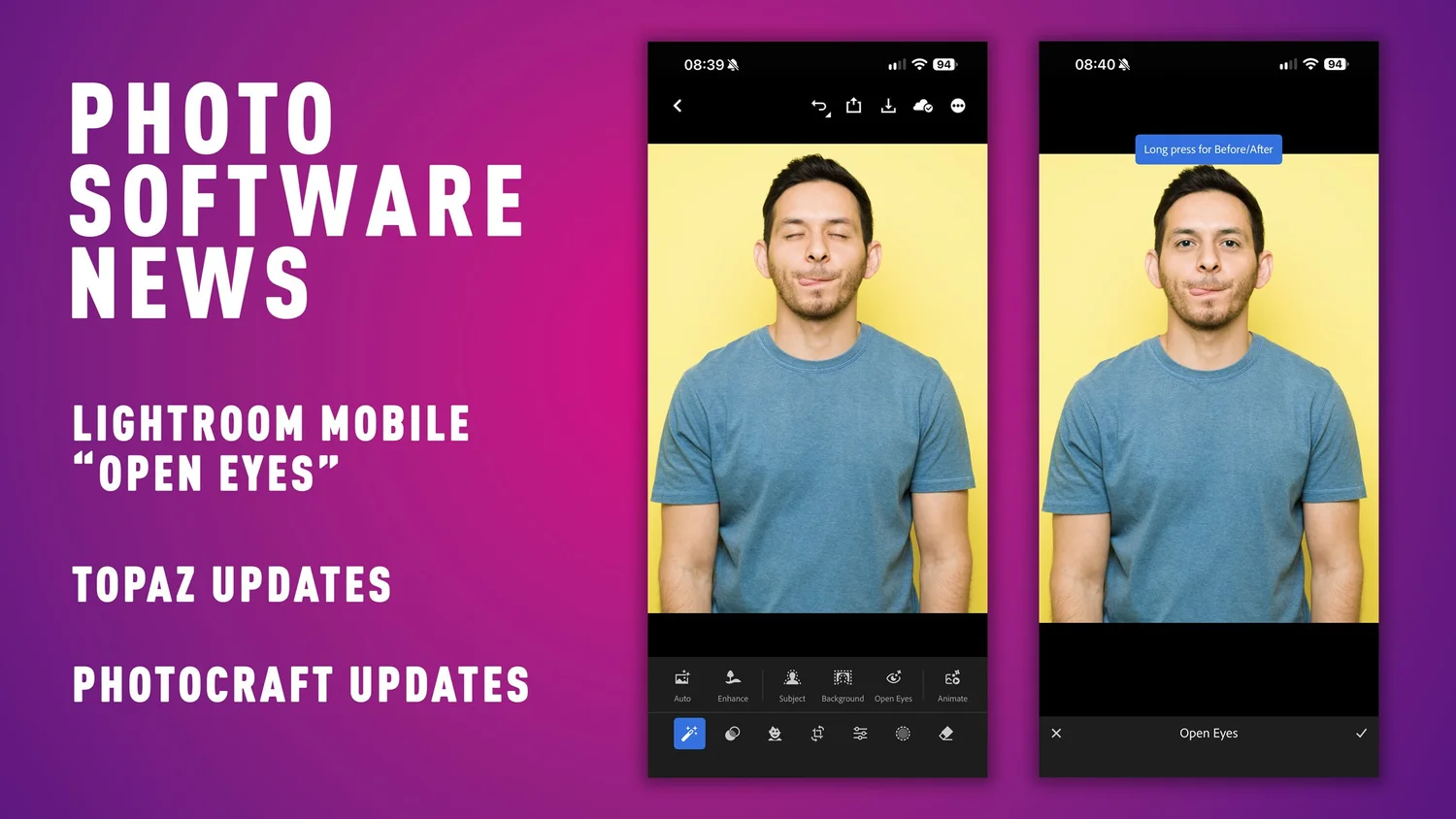
Photo Software News Update Oct 27 In this week’s photo software news….Lightroom’s latest mobile tools offer new ways to rescue photographs, while Topaz has released fixes that should interest Mac users. The controversial PhotoCraft also continues its development, although there are still good reasons to approach it cautiously. Lightroom can now open closed eyes using generative AI Adobe introduced Open Eyes for Lightroom Mobile on 19 October, offering a quick correction for portraits in which somebody has blinked. When Lightroom detects closed eyes, it presents Open Eyes as a Quick Action and generates a replacement. Adobe says the feature is available free of charge. Its official announcement also explains that photographs of the same person from your Lightroom library can help match their eye colour, shape and size. It addresses a common problem that many photographers have, especially with group shots where everybody looks good except for one person. Photographers have long repaired these images in Photoshop by copying open eyes from another frame, but that requires a suitable alternative photograph and some careful compositing. The distinction is that Open Eyes can generate detail without a reference, although it does look for reference photos before it does its thing. I just did a quick test on a selfie, and it does actually work, and it works reasonably well too, although I’ve only tried one photo yet. But my eyes are kind of weird, and it still managed to fix them, although it’s not 100%. The problem is, especially with close-ups, that closing your eyes affects the surrounding muscles too, so there’s more that changes than just your eyes. Still, it’s a useful tool, although I don’t understand why this is limited to Lightroom Mobile. Speaking of Lightroom Mobile, Generative Expand is now available on Lightroom Mobile, allowing photographs to be extended beyond their original boundaries. This could be useful when adapting a landscape photograph to a vertical format or adding space around a tightly framed portrait. Both tools are presented as available mobile features, rather than previews. Topaz Photo fixes processing problems, with an important Mac caveat Topaz Photo 1.7.1, released on 22 October, increases the input limit for local Denoise Max processing and fixes several problems involving installation, upscaling and GPU compatibility. These include failures when installing Wonder, issues with High Fidelity v3 and Standard MAX on Intel GPUs, and output dimensions being approximately one pixel off when specific enlargement dimensions were requested. The official release notes also list a fix to Topaz’s processing backend on macOS 27. The most significant qualification concerns Apple M6 Macs running macOS 27. Topaz says initial image analysis can take 15 to 30 minutes while the AI models initialise and build their cache. Subsequent processing should return to normal speeds, but the company acknowledges that the initial delay is unintended and says its investigation is continuing. That is worth knowing before assuming the application has frozen. It also means this update should not be read as confirmation that all compatibility problems on those machines have been resolved. For affected photographers, the distinction between a long first load and consistently slow processing will matter considerably. PhotoCraft continues development, and strangely, hasn’t been sued yet. PhotoCraft 0.16.0 arrived on 25 October, continuing the fast development of ArtCraft’s open-source Vibe-coded Photoshop clone. According to its release notes, the update improves aspects of PSD compatibility, keeps several smart filters editable, corrects behaviour in 32-bit adjustments and addresses problems across colour handling, cropping and layers. I remain sceptical of treating PhotoCraft as a dependable Photoshop replacement at this stage. In my opinion, it is, to all intents and purposes, an attempt to pirate Photoshop, albeit through an unorthodox and roundabout way. I’m just surprised that Adobe hasn’t issued a cease and desist yet, although I suspect that lawyers for Adobe realise that this could end up being a game of whack-a-mole if they don’t address the root cause, which is vibe-coded reverse engineering, and I suspect that will take longer to deal with. They may also be hoping the buzz around this dies down or that it ends up being so bad that no one uses it, because the company is in a lose-lose situation here. There will be substantial bad press for them if they go after the developer, but at the same time, they have to protect their patents. Anyway, we will see what happens. If you want a Photoshop alternative, I strongly suggest that you consider something like Affinity instead, as it’s a proper application created by a legitimate developer who isn’t attempting to steal another piece of software through the back door. Even if you hate Adobe with all your passion, this is just wrong. In my opinion, anyway. And if you do hate Adobe so much, why do you want an exact copy of an application that you claim to hate anyway? Bonus Photo Hardware News: Sigma announces the FP2 Sigma’s 23 October announcement confirms that the FP2 will become available on 11 November 2026. It continues the modular approach of the original fp series, with a 24.5-megapixel partially stacked full-frame sensor, a tilting screen, improved autofocus and shooting at up to approximately 20 frames per second. The camera also includes 70GB of internal storage alongside its SD card slot. Video features include 6K Open Gate recording, ProRes RAW and Leica L-Log, while 32-bit float audio requires the appropriate optional hot-shoe unit and compatible Panasonic accessories. For anyone who also shoots video, the attraction is a small camera that can be adapted to different jobs. Whether that compactness survives the addition of a viewfinder, audio accessories and a practical shooting rig remains to be seen, although it is ideal for things like gimbals and drones where you need a bare-bones setup. PetaPixel did a good review of this on YouTube if you’re interested. #photosoftware #lightroommobile #openeyes #topaz #quick #mac #still #adobe #rss #feeds #linksharing #qwibbit
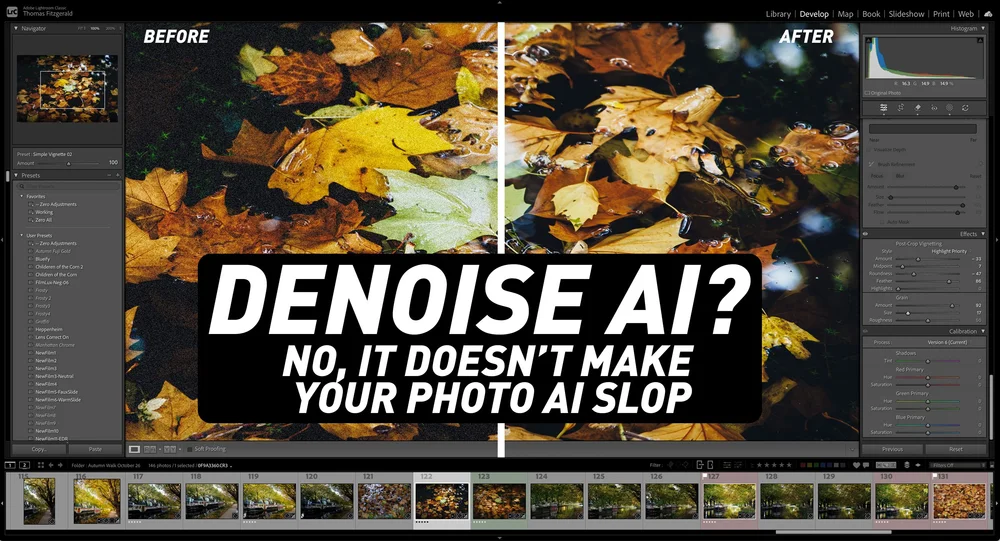
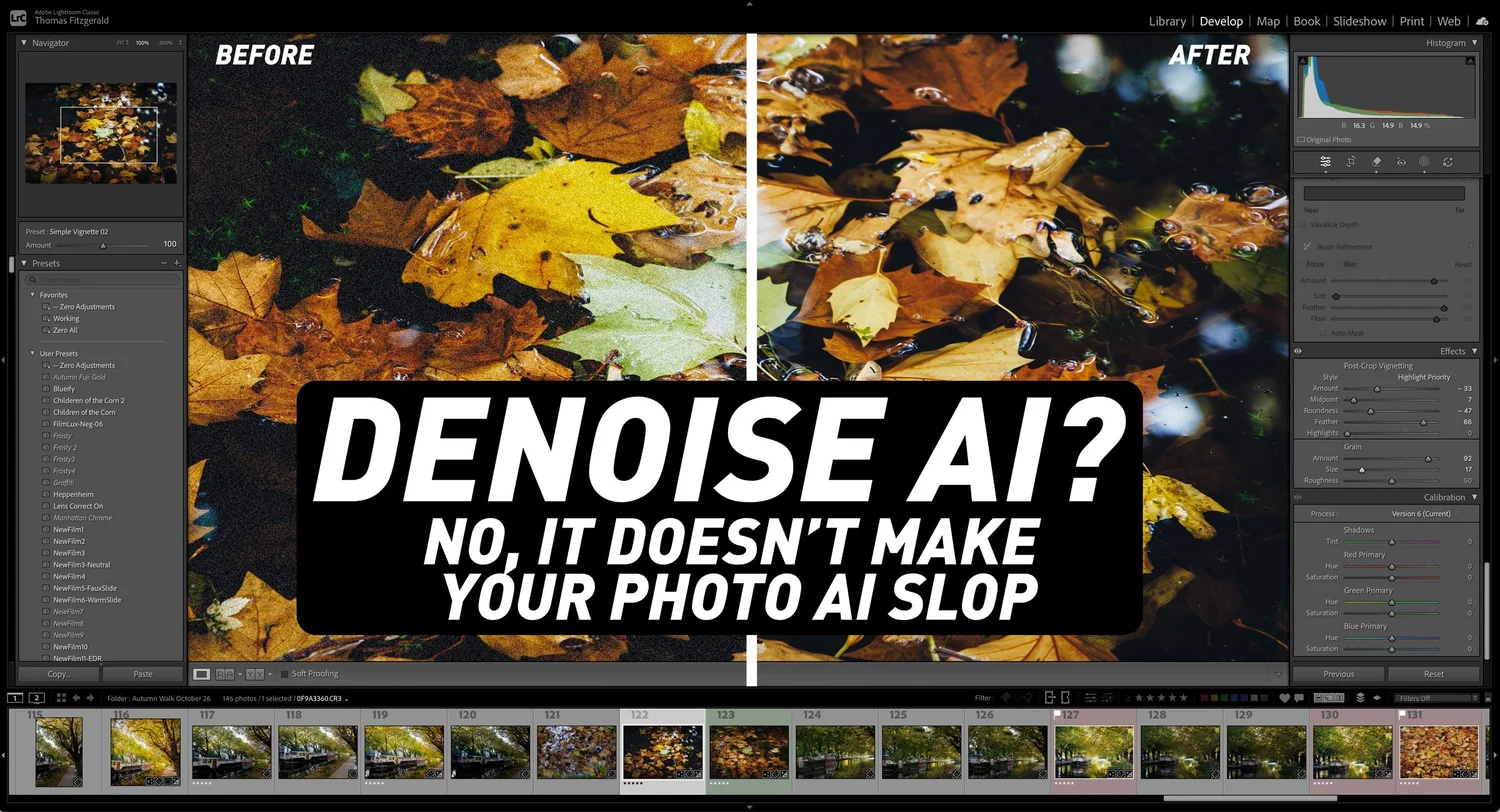
AI Denoise Isn't Generative AI: Debunking the Misconception For many photographers and creatives, “AI” has become something of a dirty word. I’ll be honest, I’m a bit of an AI sceptic myself, especially when it comes to generative AI. Concerns around “slop”, intellectual property theft during training, and environmental issues are perfectly valid concerns. However, AI is a broad term and not all technology that falls under the “artificial intelligence” umbrella is the same. This has led some people to avoid or criticise tools that have little in common with image generators. AI denoising, like the Denoise feature in Lightroom, is one of the most common examples. It carries the same label, but it works differently and does a very different job. I’ve actually covered Denoise quite a bit on this blog and on my YouTube channel. Recently, someone left an irate comment on one of my videos complaining about how Denoise was just slop and how it wasn’t a real image afterwards. They complained that if you use Denoise, why even bother taking a photo in the first place? I was actually taken aback by this because I had assumed people understood the difference. It’s easy to dismiss such comments as someone trolling, but with such anti-AI sentiment out there these days, it occurs to me that maybe some people think that AI Denoise tools are using generative AI and are replacing your image with an entirely synthesised one. But this isn’t what happens at all. Traditional noise reduction mostly worked by blurring neighbouring pixels together. That removes the grain but also takes fine detail with it, leaving skin waxy and textures mushy. I mean, the algorithms are a bit more complicated than that, but that’s the gist of it. AI denoising uses a neural network trained on large numbers of image pairs, each showing the same scene with and without noise. When you run it on your photo, it looks at each area and estimates what the clean version of those exact pixels most likely was. It removes the speckle and keeps the edges and textures that were really there. Lightroom's version even works on the raw file before it becomes a normal image, which is part of why the results look so natural. In other words, it uses machine learning and statistical analysis based on thousands of images to figure out how to adjust your image on a pixel-by-pixel basis to achieve the best noise reduction. This is a very simplified version of what is happening. Adobe’s own blog has more details on how their Denoise works, but most other tools that have similar technology will work in the same way. But the important thing to note here is that it is NOT using generative AI. So what’s the difference? Generative AI creates content that was never captured. Ask a tool like Generative Fill to add a sky or remove a person, and it invents new pixels based on what it has learned images usually look like. A denoise tool’s job is to improve your image: it modifies your image rather than creating a new one. A generative tool's job is creation: it is free to make up something plausible where there was nothing. You’ll often see this in more recent tools like Lightroom’s (cloud) prompt-to-edit feature, where it tries to edit your image, but because it uses generative AI, it’s effectively creating a new version. This often leads to different details in your image, so people might appear where none were there before, and some other fine details might completely change. It’s perfectly ok, in my opinion, to be mad at this kind of thing. But that’s not how AI Denoise works at all. There is some crossover, of course, and they are built on similar technology such as machine learning and neural networks, but that’s where the comparison really ends. Denoise isn’t perfect, and can occasionally result in artefacts and unnatural-looking images. Still, a denoised photo is your photo, just cleaner. Or to put it another way, denoising edits your existing image data, whereas generative AI creates entirely new image data. Even if you’re using it to edit your photo, it’s still a new image. AI Denoise isn’t new either. It’s been around for a while now. Adobe introduced it in 2023, and many other software companies now have also added similar features. In particular, there is DXO’s Pure RAW, which uses DXO’s own flavour of denoising technology in combination with its popular lens correction profiles, and Capture One also recently added AI denoising to its toolset. Other notable mentions are Luminar and ON1 No Noise AI. I hope, like Denoise itself, this has made things a bit clearer. (Nerdy and terrible Denoise joke!) Support the Blog Check out my eBooks and Presets Check out my photography eBooks , Capture One Styles, and Lightroom Presets available on GumRoad. Subscribe to my YouTube Channel Check out my YouTube channel for tutorials, Vlogs, and more! Buy me a coffee! If you want to say thanks or help, then you can feed my caffeine habit and buy me a coffee via PayPal with a one-off donation to my PayPal tip jar. Note that this post contains paid affiliate links. We get a small commission for purchases made through these links, which helps run this site. #denoise #generative #lightroom #concerns #ai #rss #feeds #linksharing #qwibbit
Steve Jobs said touchscreen laptops don't work. Apple is about to make one anyway Next Wednesday, Apple is holding its "Pro and Tell" event. If the rumours are right, we're about to get something many of us never thought we'd see: a MacBook Pro with a touchscreen. It's reportedly an OLED model with a Dynamic Island where the notch used to be, and it would be the first Mac you can actually touch. For a long time, that seemed impossible. Back in 2010, at the "Back to the Mac" event, Steve Jobs dismissed the idea in a way that has been quoted ever since: "We've done tons of user tests on this, and it turns out it doesn't work. Touch surfaces don't want to be vertical. It gives great demo, but after a short period of time you start to fatigue, and after an extended period of time, your arm wants to fall off. It doesn't work. It's ergonomically terrible." For years, that was more or less Apple's position. The iPad was for touch and the Mac was for the keyboard and trackpad, and the two weren't supposed to meet. So what changed? The evidence is already in macOS 27 This is probably the worst-kept secret Apple has had in a long time (up there with the Home View). Apart from the fact that it has been rumoured for months, the changes in recent versions of macOS make it pretty clear that Apple has a touchscreen in mind. Sidecar got full touch support. Until now, using an iPad as a second display for your Mac meant the Apple Pencil and a few basic gestures. In macOS 27, you can use your fingers. Pull to refresh arrived on the Mac. It's a small thing, but it's a touch gesture, and seems a bit redundant trackpad-only computer, although I use it all the time now, so maybe not! The 27.2 betas have even more. Code in Photos, Notes, Safari and Quick Look references touch gesture recognisers, and the Dock now has a new long-press animation for icons. The interface has been moving this way for a while. Liquid Glass, with its bigger, rounder, more spaced-out controls, makes a lot more sense once you picture a finger instead of a cursor. I wrote about Liquid Glass from a designer's perspective last year, and in hindsight, a lot of it looks like groundwork. Apple doesn't usually rebuild parts of its operating system for no reason (I’ll resist the obvious Liquid Glass joke here). In a way, the evidence was hiding in plain sight. That, and the rumours, were pretty explicit. What about the Apple Pencil? This is the part I'm most curious about as a photographer and a designer. If Apple is putting a touchscreen on a MacBook Pro, Apple Pencil support doesn't seem like a huge leap. Sidecar already supports the Pencil, so the groundwork is there. There’s been no mention of this in the rumours, and it probably wouldn’t work too well, but it is possibly something that could happen. For photo editing, it could be useful. Precise masking, retouching, dodging and burning: there are plenty of tasks where a pen would be better than a mouse or trackpad. Being able to reach up and paint in a mask in Lightroom or Photoshop without reaching for a separate tablet has some appeal. That said, a laptop is definitely not the best form factor for this kind of thing. Drawing on a vertical screen has the same problem Jobs described. You can't rest your hand properly, and the screen wobbles every time you touch it, even with the best Apple-designed hinge. The iPad works for drawing because you can lay it flat or hold it like a piece of paper. Unless Apple has done something radical in mind (or a kickstand), I suspect Pencil support on a MacBook would be highly unlikely. But you never know. I’m just thinking out loud here! Of course, there’s always the possibility they allow it to flip over into a tablet mode, but that seems even more unlikely. Was Jobs wrong, or has the world changed? Steve Jobs wasn't wrong about the ergonomics. Holding your arm up to a laptop screen for long periods is still tiring, and I don't think anyone wants to do all their work by poking the display. Not to mention the inevitable fingerprint problem. Of course, that’s always a way to sell more of the infamous Apple polishing cloths. However, things have changed since Steve made those comments, and most people now spend so much time on phones and tablets that touching a screen is instinctive. I've caught myself doing it a few times after switching from my iPad on a project. Having said that, I’ve been watching the commentary around this on social media, and according to many users who use touchscreen PCs, they hardly ever use the touch function. But then social media isn’t a reliable barometer of user experience, so who knows. We'll find out next week how Apple has actually approached it. I'll have more thoughts once it's been announced. The Tandem OLED upgrade may be far more interesting than a touch screen The thing I’d be far more interested in is the potential of an OLED screen. This in itself could be a big upgrade over the already excellent screens on the MacBook Pro. Given the iPad Pro uses a Tandem OLED, I’d expect Apple to use the same tandem OLED technology. That stacks two OLED layers on top of each other, which roughly doubles the brightness. On the iPad Pro, Apple quotes 1,000 nits full-screen and 1,600 nits peak for HDR. For photographers, the big win isn’t really brightness, since the current mini-LED MacBook Pro already hits similar figures. It’s that every pixel produces its own light. That means true blacks and no “blooming” halos around bright objects on dark backgrounds, which is exactly the kind of thing that makes judging HDR edits difficult right now. It’s worth remembering that OLED has a long history in the professional video world. Sony’s BVM-X300 OLED reference monitor was for years the standard for grading and mastering HDR content. I have seen one of these in action, and they’re amazing. Incredibly expensive, but amazing. I also have a friend who works as a professional colourist on feature films, and they recommend the iPad Pro with its OLED screen to clients for watching back edits, as it’s the most accurate screen compared to their studio monitors for the price. Having one of these in a MacBook would be amazing. This is probably more of a thing for video and film work, mind you, than photography, but still! It will be expensive, mind you. Over to you I've never used a touchscreen laptop for any length of time, so I'm curious: if you've used a touchscreen Windows PC or a 2-in-1, how did you find it? Did you actually use the touchscreen, or did you forget it was there after a while? What do you want to see in a high end MacBook Pro? Let me know in the comments. #stevejobs #apple #mac #liquidglass #touchscreen #pencil #pro #work #macbookpro #make #rss #feeds #linksharing #qwibbit
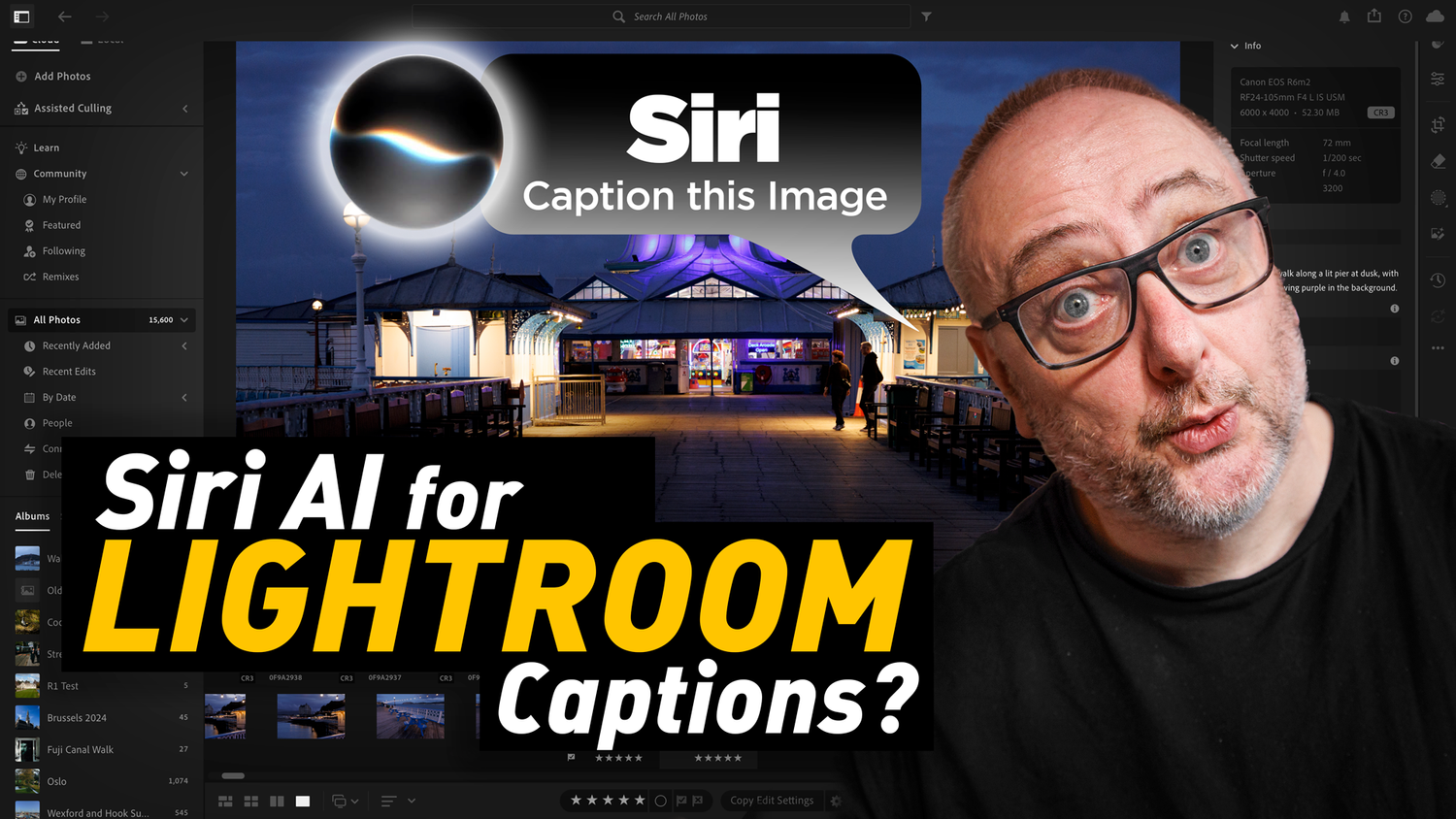
New video: Create Lightroom Captions & Keywords with Siri AI in macOS 27 In this video, I show you a cool way to use Siri AI in the new macOS 27 Golden Gate to create captions and keywords for use with Lightroom, Lightroom Classic or any photo editor really. The trick involves using Apple’s “Visual Intelligence” feature to let Siri see what image you’re looking at, and then it can generate captions from there. I also show you how to use the new “Describe a Shortcut” feature to create a shortcut to do this quickly in one step. Basically, the idea is to use visual Intelligence to create captions for any image. Visual Intelligence uses the screenshot tool to select part of the screen, and then you just ask Siri about what you have selected. In this case, you can ask it to create captions for you. To activate Visual Intelligence, you use the same command key for taking a screenshot selection, so it’s Command + Shift + 4 and then just press Command again to go into Visual Intelligence mode. You will notice that the cursor changes, and now the marquee has a glass look when you drag it. Drag it around the image on the screen, and then you just ask Siri to create a caption for you. You can also get it to generate keywords. Another thing I cover is how to be more specific, so if you know something about the location of the photo, include that in your prompt. In the video, I also explain how to use Apple’s new “describe a shortcut” feature to automate this a bit. You can basically use the shortcuts app to create a shortcut that will do all of this in one step for you and copy the results to the clipboard. the prompt I used to create my shortcut is below: Describe a Shortcut Prompt: “Take a screenshot and create a caption for the image in the screenshot, ignoring the user interface. Copy that caption to the clipboard. Wait five seconds, then create keywords for the same image, also ignoring the user interface. Then copy those to the clipboard” Once you run this, it will create the caption, copy it to the clipboard, and wait 5 seconds before creating keywords and copying those to the clipboard. The wait is so you have time to paste the caption before the keywords are copied to the clipboard. image #visualintelligence #createlightroom #lightroomcaptions #siri #keywords #shortcut #goldengate #macos #describe #command #rss #feeds #linksharing #qwibbit
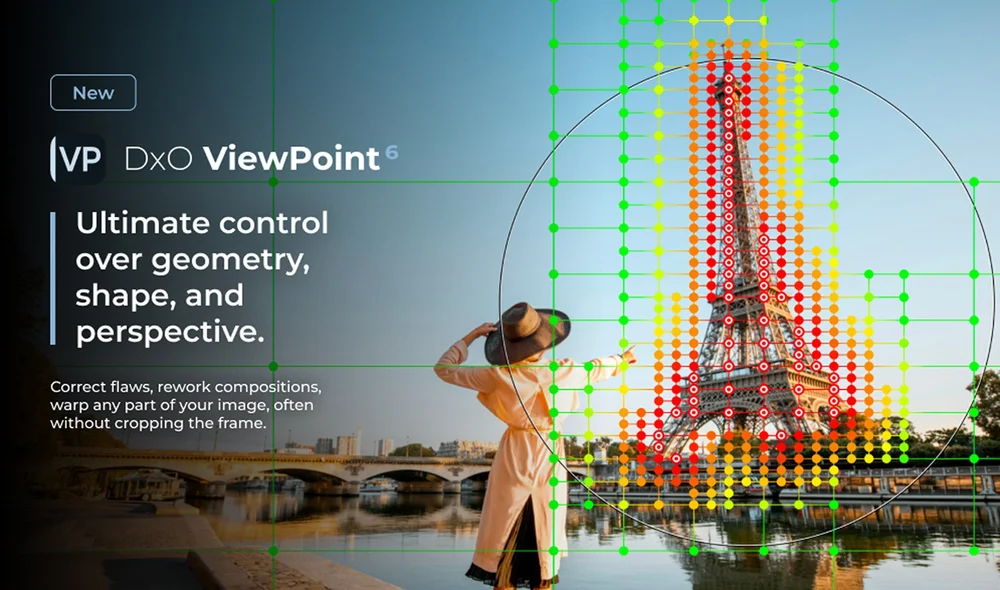
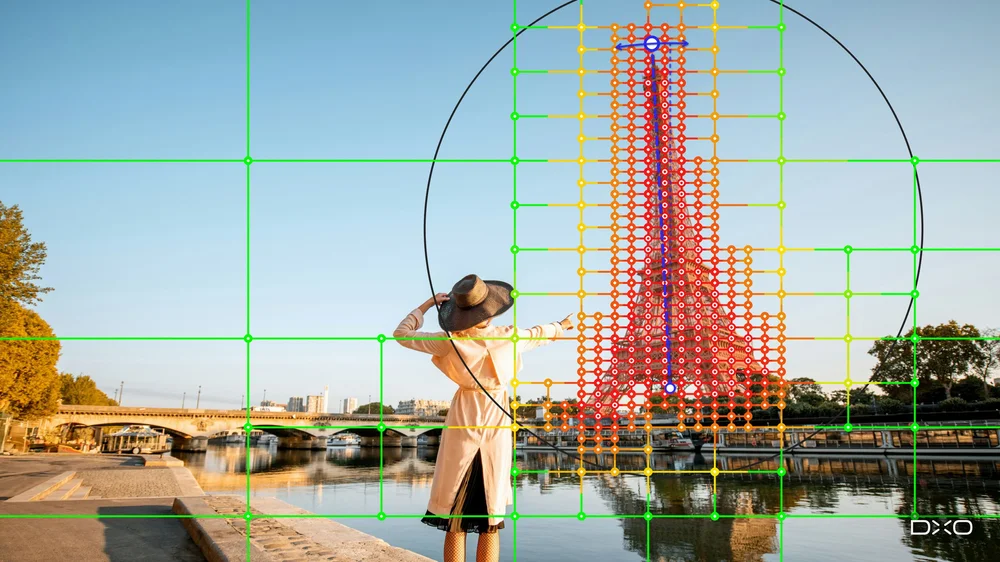
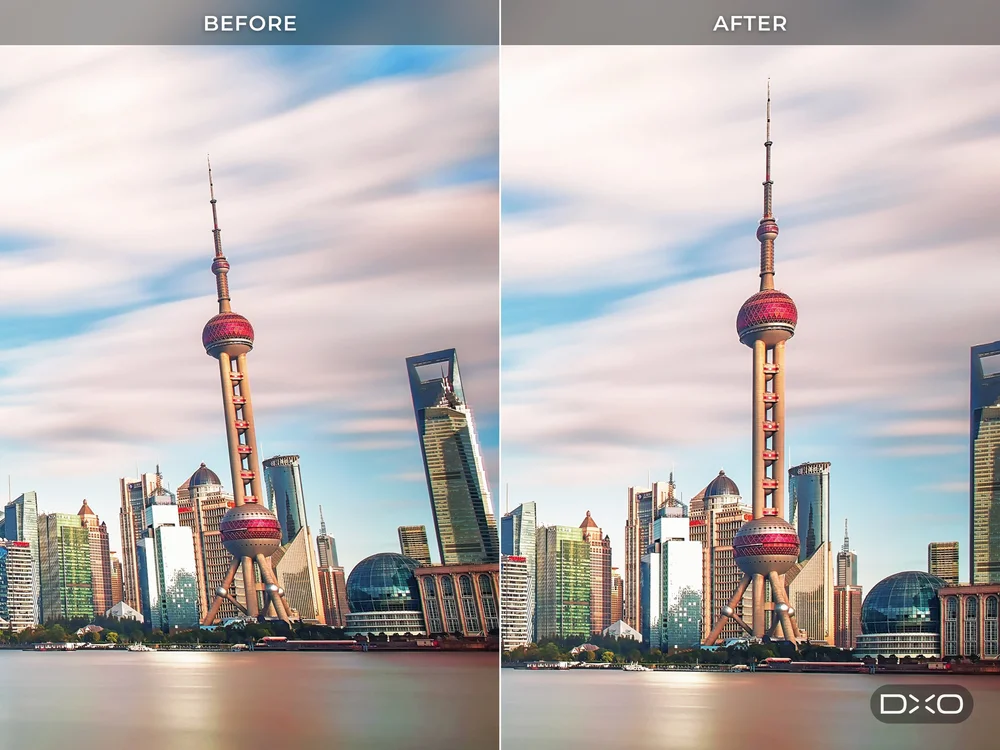
DXO ViewPoint 6 Released: AI Masks & Raw Support Added DXO has released ViewPoint 6, the latest version of its software for correcting geometry, perspective and distortion. The big change in this version is the addition of AI masks to ReShape Fusion, the tool for adjusting individual parts of a scene within the frame. You can now apply a geometric correction to one element of an image using AI selection to mask the area. The software also works with RAW files and has basic RAW editing tools, including exposure compensation and white balance. I've written about how useful ViewPoint can be before, when I pointed out how to use it to fix the "stretchy people" effect you get at the edges of wide-angle shots. I should say up front that I haven't had much time to try ViewPoint 6 out myself yet, so this is more of an announcement than a review. I may follow up with my own thoughts once I've spent more time with it. For now, here's what's new in version 6. AI Masks in ReShape Fusion If you have elements within a scene that still look distorted, even with conventional distortion correction, View Point lets you correct that element independently. This tool is in ViewPoint 5, but you had to manually isolate and correct the element you wanted to correct. With the new AI masks, ReShape Fusion can isolate that element for you, and you can control how far the change spreads into the rest of the image. One example of where this can be useful is when cropping. Conventional perspective tools work on the whole image. When you straighten converging verticals, the entire picture plane tilts, the rectangle becomes a trapezoid, and you have to crop to get a rectangle back. The stronger the correction, the more of the image you lose. By working on a single element instead, DXO says that for many images the correction no longer costs you the edges of the frame. DXO is also keen to point out that nothing is generated here. ViewPoint doesn't create new pixels or fill anything in at the edges. It rearranges what's already in the photo, and the dimensions of the frame stay the same. That's a different approach from the generative fill tools some other applications now use for this kind of problem. AI Selection, Not Generative AI It’s important to note that the AI part of this tool is limited to making the selection. The corrections themselves are still done by hand. You start by drawing a rectangle around the subject. ViewPoint then detects the element inside it and builds a mask that follows its outline. The mesh used for the correction is built to match that outline, so the control points sit on the subject itself rather than on a uniform grid across the whole image. The density of the mesh also varies, with a coarse grid in areas that don't need changing and a finer one where you're working. From there, you adjust the mesh directly. You can: Subdivide regions for finer control, or merge them where you don't need the detail Direct the subdivision inside or outside the selection Switch individual control points on or off Control how far a change reaches into the rest of the image That last one is important, because reshaping one part of an image always pulls on whatever is around it. DXO gives the example of a face near the edge of a group portrait, which can be brought back towards normal proportions while limiting how much the adjustment affects the people beside it. The same mesh can also be used to reposition or resize an element that looks out of proportion with the rest of the scene. The Other Geometry Tools The rest of ViewPoint's toolset carries over from the previous version. The software is built around three common geometry problems, all of which become more noticeable with wide-angle lenses: Barrel distortion, where straight lines bow outwards Converging verticals, caused by tilting the camera Volume deformation, where subjects near the edge of the frame look stretched Lens distortion is corrected automatically using DXO's lens modules, which are based on lab measurements of thousands of camera and lens combinations, and the maximum field of view is preserved. Volume Deformation corrects stretching at the edges horizontally, vertically or both. There are also automatic and manual perspective tools for full-frame corrections, with ReShape Fusion handling the localised adjustments, along with horizon correction and the Miniature Effect. ViewPoint tends to be thought of as a tool for architecture, and that's where it's most obviously useful. But the same problems come up in interiors, real estate, events, travel, street, portrait and landscape photography, so it's applicable to a lot more than buildings. RAW Editing ViewPoint 6 can open RAW files directly in the standalone application, along with TIFF and JPEG, without converting them first or round-tripping through another application. RAW files are rendered using DXO's own camera profile in the DXO Wide Gamut colour space. ViewPoint also reads the image metadata to download and apply the matching DXO Camera-Matching Profile, and corrects distortion automatically. There are two new controls for preparing the image before you start on the geometry: Exposure Compensation, with a range of -4.00 to +4.00 EV, available for all formats White Balance, with presets, Temperature and Tint sliders and an eyedropper for RAW files. JPEG and TIFF files get a single slider and the same eyedropper. Editing is non-destructive. Corrections are saved to a sidecar file next to the image, so the original file is never changed, and your edits are still there when you reopen the image later. ViewPoint's sidecar files are kept separate from the ones PhotoLab writes, so the two applications won't interfere with each other. However, to bake in the distortion correction for use in another application, you will still need to export the corrected image. Finished images can be exported as 8-bit or 16-bit TIFF, or as JPEG. Standalone, Plug-in or Inside PhotoLab ViewPoint 6 works as a standalone application and as a plug-in for Lightroom Classic, Photoshop and Capture One. If you own PhotoLab 10, the ViewPoint tools are integrated directly into PhotoLab's Geometry palette. Availability and Pricing ViewPoint 6 is available now from the DXO website for macOS and Windows. Pricing is as follows: New Licence: $129.99 | €119.99 | £109.99 Upgrade (from ViewPoint 5): $84.99 | €74.99 | £69.99 There's a 30-day free trial available from the DXO website. You can use my code: ThomasFitzgerald15 to get 15% off (new customers only, I'm afraid). This isn't a sponsored post; however, I'm on DXO's affiliate programme, so if you use my code, I get a small commission, but DXO has no input into what I write. #dxo #raw #masks #viewpoint #released #reshapefusion #selection #ai #rss #feeds #linksharing #qwibbit
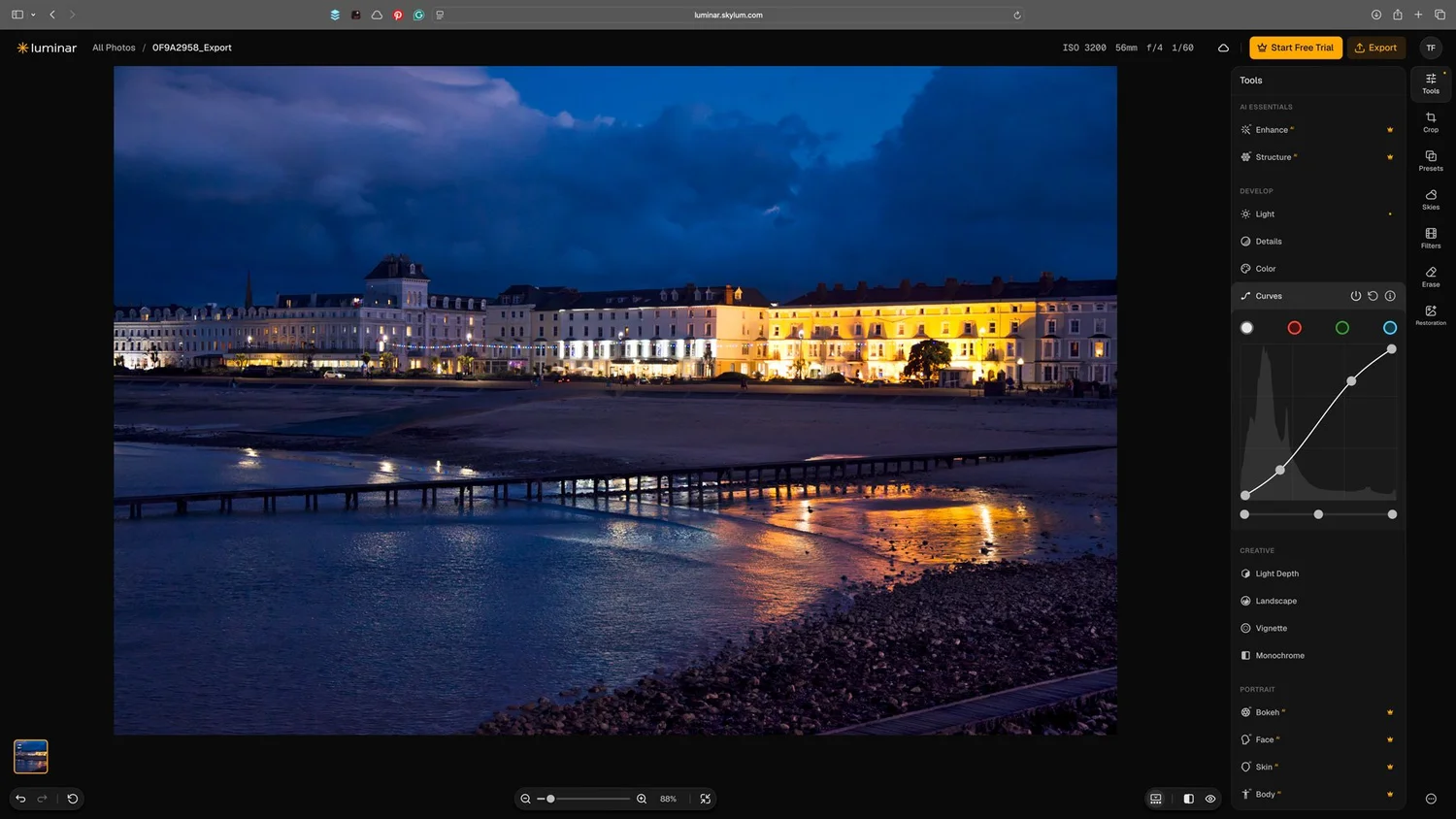
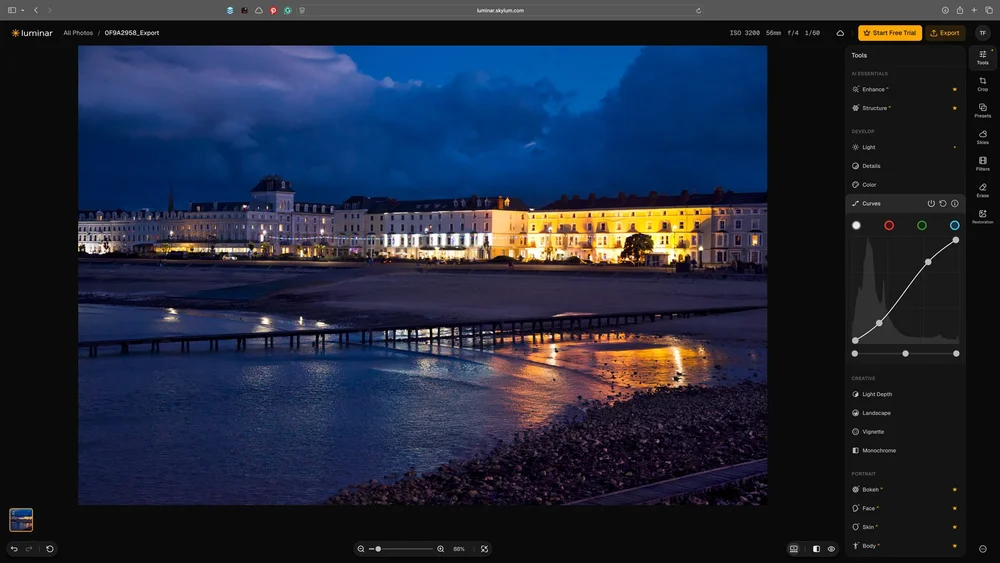
Photo Software News for October 19 A new browser-based version of Luminar has been released, bringing RAW processing and several of Skylum’s familiar editing tools to the web. There are also a couple of smaller releases worth knowing about: fixes to Exposure’s rendering on Apple Silicon Macs and a revised preview system in Topaz Gigapixel. Luminar brings RAW editing to the browser Skylum launched Luminar on Web on 15 October, offering browser-based RAW editing alongside tools including GenErase, photo restoration, sky replacement and Light Depth lighting adjustments. Its launch announcement also states that there will be cross-device synchronisation, with basic functionality available free and full access advertised at US$69. For photographers who move between different computers or devices, it’s easy to understand why this might be useful: being able to access your editing software without having to install an application. Whether it becomes useful for more demanding work will depend on how well it works, and things like camera support, export quality, responsiveness and how reliably edits move between devices. I had a quick try of it, and it does work, but the Free trial requires you to sign up with a credit card, so - not doing that - and the basic edits are a bit slow (but still usable), to be honest. Still, in a pinch, if you’re a Luminar user, I can see this being quite useful. I haven’t really been keeping up with Luminar recently, but I must have another look at it. If you use it regularly, please let me know your thoughts in the comments below. Exposure X7 addresses incorrect rendering on Apple Silicon Exposure X7 version 7.3.1, released on 14 October, fixes a problem with Shadow and Highlight adjustments not rendering correctly when using GPU acceleration on Apple Silicon Macs. The update also addresses scattered white pixels in the shadows of monochrome RAW files, including those from the Leica Q2 Monochrom. Both changes appear in the official release notes. Exposure Software. The release also fixes preset-related error messages when Exposure is used as a Photoshop or Lightroom plug-in, addresses several crashes and adds Canon EOS R3 support. I actually thought that they stopped making this application. I used to use it ages ago, and it showed promise, but then for a while they hadn’t updated it. I miss the old alien skin plug-ins that Exposure evolved from, but I must give the application itself another try. They seem to be a bit slow at adding camera support, mind you. My Canon R6II was only added this year, and that’s a three-year-old camera that has already been superseded. And incidentally, I tried the trial version, and despite supposedly being supported, it still doesn’t see RAW files from my Canon. Gigapixel moves previews to the GPU Topaz released Gigapixel 1.4.0 on 12 October, with changes aimed at making large-image previews faster. The updated preview system uses the GPU, while a preference allows users to return to the previous behaviour. The release also fixes Autopilot stalling when reloading an image and updates Topaz’s processing backend for Mac support. Topaz’s announcement describes this as a performance and reliability release. Topaz Community For photographers preparing large prints, preview speed can have a considerable effect on the editing process. Comparing settings becomes tedious when every adjustment requires a lengthy wait, so a faster preview could be useful even without a new enhancement model. There are still limitations to bear in mind. Topaz lists known colour issues involving images with Apple’s wide-colour sharing profile and CMYK export-queue thumbnails. Those make colour consistency worth checking when evaluating the update, alongside the speed improvements. Bonus Gear News!! Fujifilm updates its square-format Instax camera Fujifilm announced the instax SQUARE 2 on 14 October, with availability scheduled from 28 October. It is joined by SOFT HAZE square-format film, which Fujifilm says uses a newly developed emulsion to produce softer light effects and warmer colour tones. The official announcement covers both products. Funnily enough, I never actually dipped my toe in the Instax pool, being more of a Polaroid man myself! Help Support the Blog Check out my eBooks and Presets Check out my photography eBooks , Capture One Styles, and Lightroom Presets available on GumRoad. Subscribe to my YouTube Channel Check out my YouTube channel for tutorials, Vlogs, and more! Buy me a coffee! If you want to say thanks or help, then you can feed my caffeine habit and buy me a coffee via PayPal with a one off donation to my PayPal tip jar. (Please note that PayPal doesn’t make it easy to respond to these, so just know you are thanked in advance) Note that this post contains paid affiliate links. We get a small commission for purchases made through these links, which helps run this site. #applesilicon #october #raw #siliconmacs #luminar #exposure #canon #gpu #skylum #gigapixel #rss #feeds #linksharing #qwibbit
↑