Improve sleep by enabling red light: iOS 1. Settings → Accessibility → Display & Text Size → Color Filters 2. Turn ON Color Filters → Select Color Tint 3. Set Intensity and Hue all the way to RED 4. Settings → Accessibility → Accessibility Shortcut → select Color Filters to toggle with triple-click on side button Android 1. Settings → Display → Night Light or Eye Comfort Shield (name varies by device) 2. Turn ON and set schedule to Sunset to Sunrise 3. If available, adjust Color Temperature toward WARMEST setting 4. For deeper red, some phones support developer mode screen filters or third-party apps like Twilight or Red Moon h/t to @Max DeMarco for showing me this last year. I’ve been doing Greyscale for about 5yrs, but red is superior. image

Replies (24)

Great Advice, I do this since a while now. Boomers can also watch their stock portfolio or retirement accounts for a similar effect.
Svetski's avatar Svetski
Improve sleep by enabling red light: iOS 1. Settings → Accessibility → Display & Text Size → Color Filters 2. Turn ON Color Filters → Select Color Tint 3. Set Intensity and Hue all the way to RED 4. Settings → Accessibility → Accessibility Shortcut → select Color Filters to toggle with triple-click on side button Android 1. Settings → Display → Night Light or Eye Comfort Shield (name varies by device) 2. Turn ON and set schedule to Sunset to Sunrise 3. If available, adjust Color Temperature toward WARMEST setting 4. For deeper red, some phones support developer mode screen filters or third-party apps like Twilight or Red Moon h/t to @Max DeMarco for showing me this last year. I’ve been doing Greyscale for about 5yrs, but red is superior. image
View quoted note →
MM's avatar
MM 8 months ago
Do it in reverse order (on iOS) if you’re colorblind. Otherwise it’s near impossible to set what the triple click action is. 😂
Not sure about the color filter thing, but I can schedule Night Shift under Settings —> Display & Brightness. Manually set it for a specific time or schedule it to adjust automatically at sunrise and sunset.
I was messing around with the black and white version this on iOS but my weak countenance found the triple click was just too “accessible” and convenient to just turn it off
This helps a lot. Doing it for the last 15 years or so.
Svetski's avatar Svetski
Improve sleep by enabling red light: iOS 1. Settings → Accessibility → Display & Text Size → Color Filters 2. Turn ON Color Filters → Select Color Tint 3. Set Intensity and Hue all the way to RED 4. Settings → Accessibility → Accessibility Shortcut → select Color Filters to toggle with triple-click on side button Android 1. Settings → Display → Night Light or Eye Comfort Shield (name varies by device) 2. Turn ON and set schedule to Sunset to Sunrise 3. If available, adjust Color Temperature toward WARMEST setting 4. For deeper red, some phones support developer mode screen filters or third-party apps like Twilight or Red Moon h/t to @Max DeMarco for showing me this last year. I’ve been doing Greyscale for about 5yrs, but red is superior. image

View quoted note →
Yep. Been reducing blue light on my devices for about 10 years now Also, when working after sunset on desktops... for Windows/Mac: use F.lux justgetflux.com for Linux: Use Night Color Control/Night Light
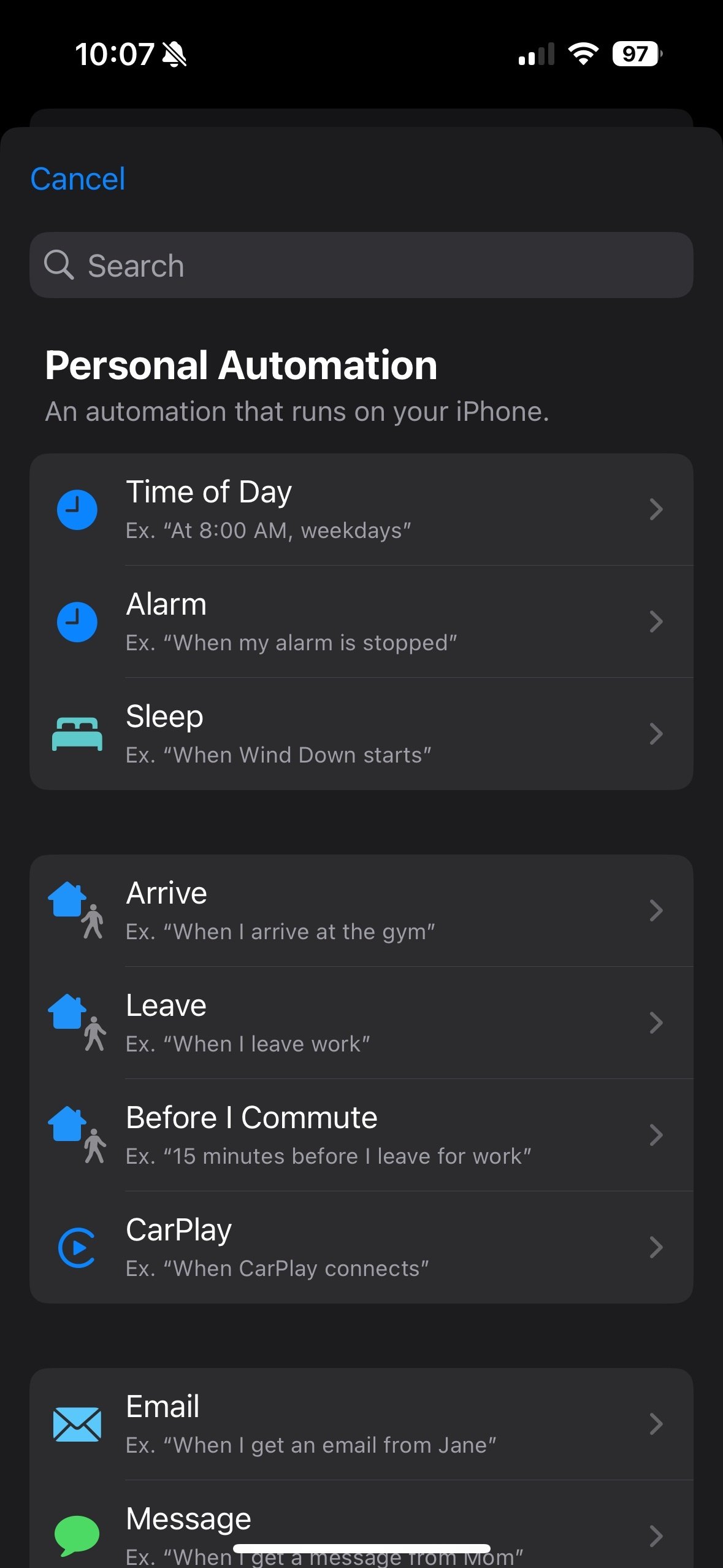
Shortcuts app. Create an automation that triggers based on time. You can even choose sunset and sunrise. Are you not using automations yet?
Android: Twilight -> Always. Flux -> Adjust colors together. Slide them all to the left, then bring the top (daytime) to the right a little. You want to filter the blue light all the time. Basically cut your exposure to any artificial source of blue light to as near to zero, all the time. This is true for lighting in your home, too.